How current is the data?
The Data through chip at the top right shows the latest month of payer files in the app and the day it arrived. Rates refresh monthly as each payer publishes.
1 video · 7 sec in all
Video 1 of 1 · 7 sec
Check how current the data is
Captions are in the video. The steps and the full narration are below.
Step by step
Before you start. The Data through chip sits at the right of the top bar on a wide screen.
- Look at the Data through chip at the right of the top bar. It names the latest month of payer files in the app, and loaded gives the day that month arrived.
- Click the chip. Rate Watch opens, and its header shows Data through with the same month and Loaded with the day.
What you see. The top right of Rate Watch shows the month of the files and the day they were loaded.
Tip. Data through is the month of the payer files and Loaded is when that month reached the app. Rates refresh monthly as each payer publishes.
Read the narration
Data through names the latest month of rates. Click it, and Loaded shows the day it arrived.
Screens from this video
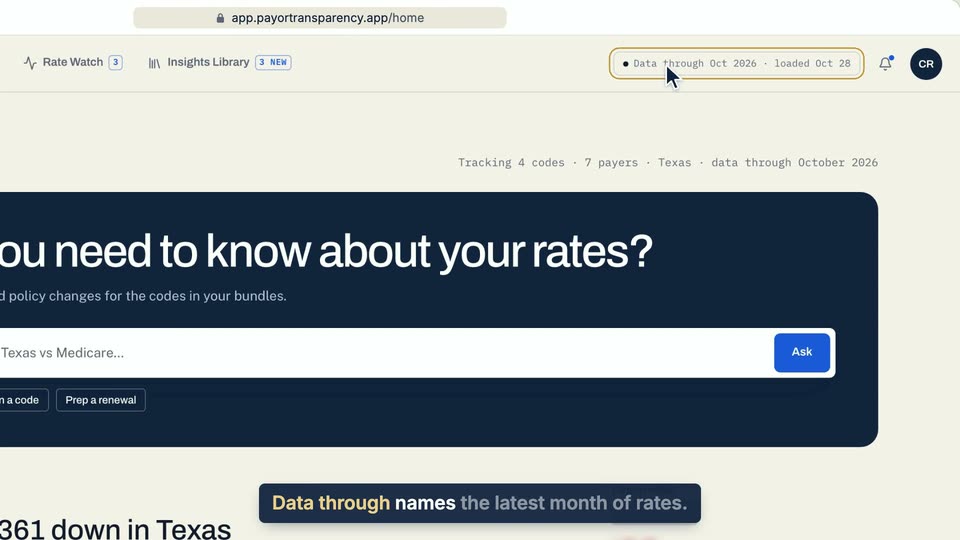
01 Data through names the latest month of rates. 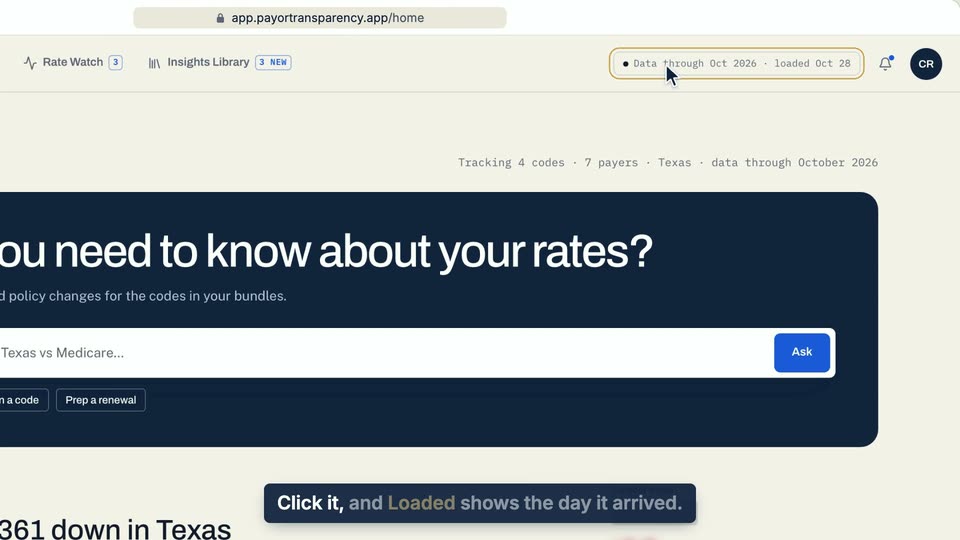
02 Click it, and Loaded shows the day it arrived. 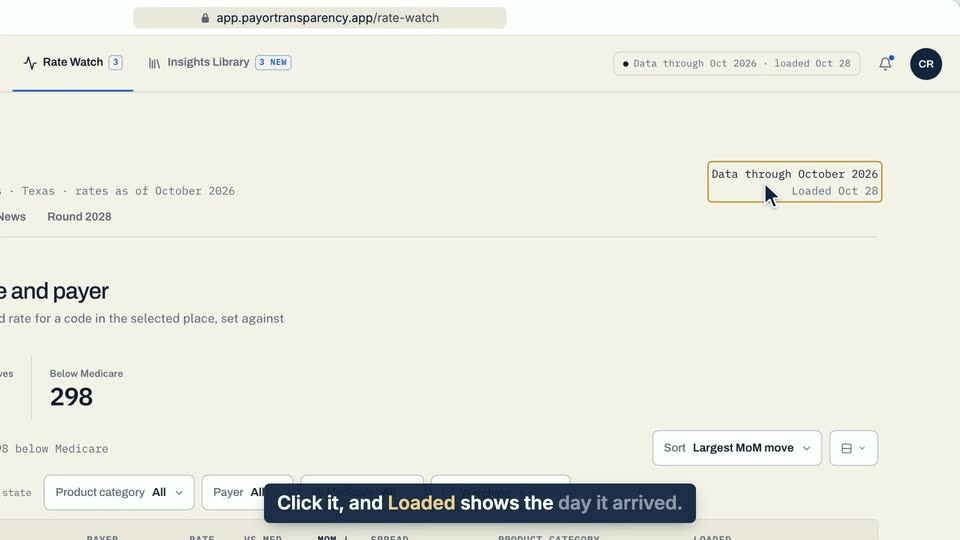
03 Click it, and Loaded shows the day it arrived.
- Use case
- How current is the data?
- Feature
- Data-currency chip
- Task
- Check how current the data is