How do I find a ready-made question to ask?
Open the Insights Library. The Catalog lists expert questions you can search and filter by topic, role, status, category or code.
2 videos · 17 sec in all · 1 written guide
Video 1 of 2 · 8 sec
Search the catalog
Captions are in the video. The steps and the full narration are below.
Step by step
Before you start. Click Insights Library in the top bar. It opens on the Catalog tab.
- Click the search box at the top left of the Catalog tab.
- Type a word or a code, for example "Medicare", and press Enter.
What you see. The list shows only the questions that match, and a Reset filters link appears to the right of Has brief.
Tip. Search checks the question text and its codes within the filters you have set. Click Reset filters to clear the search.
Read the narration
In the Insights Library, type a word in the search box and press Enter. Matching questions appear.
Screens from this video
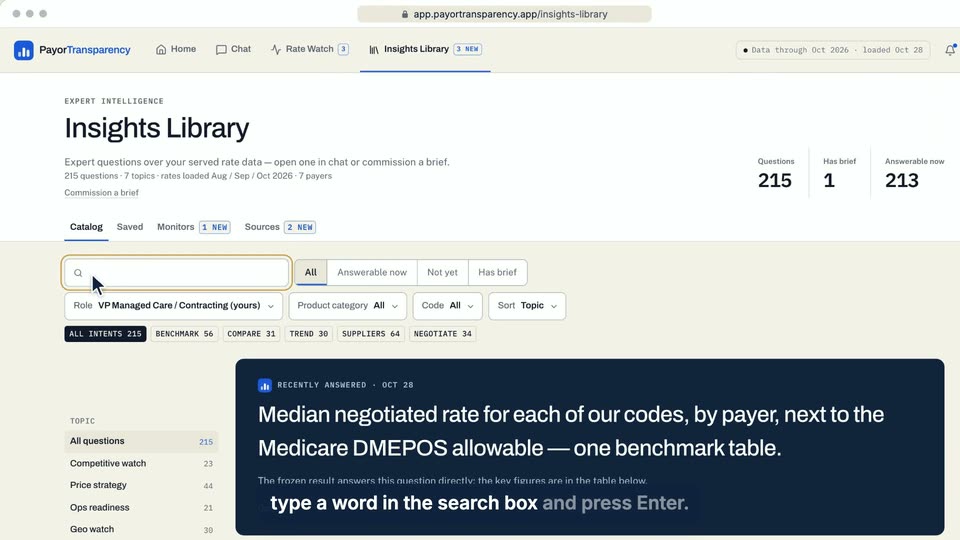
01 In the Insights Library, type a word in the search box and press Enter. 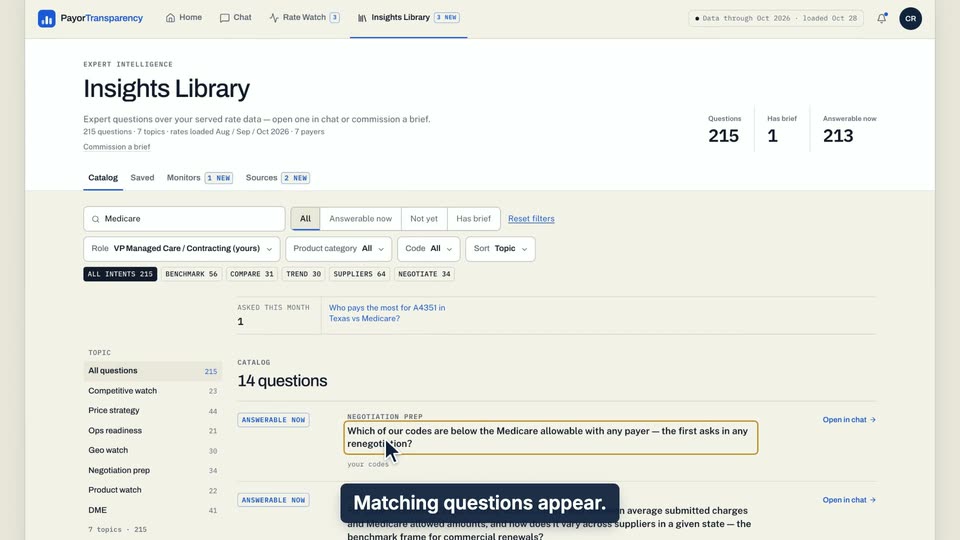
02 Matching questions appear.
- Use case
- How do I find a ready-made question to ask?
- Feature
- Catalog search and facets
- Task
- Search the catalog
Video 2 of 2 · 10 sec
See questions for every role
Captions are in the video. The steps and the full narration are below.
Step by step
Before you start. The Catalog in Insights Library starts on the questions for your own role.
- Click Insights Library in the top bar. The Catalog tab opens.
- Open the Role menu. It starts on your own role, marked (yours).
- Choose All roles.
What you see. The Role menu now reads All and the list holds the questions for every role. Reset filters brings back your own role.
Tip. The Questions, Has brief and Answerable now tiles at the top always count every role.
Read the narration
In Insights Library, open Role. It starts on your role, marked (yours). Choose All roles for every question.
Screens from this video
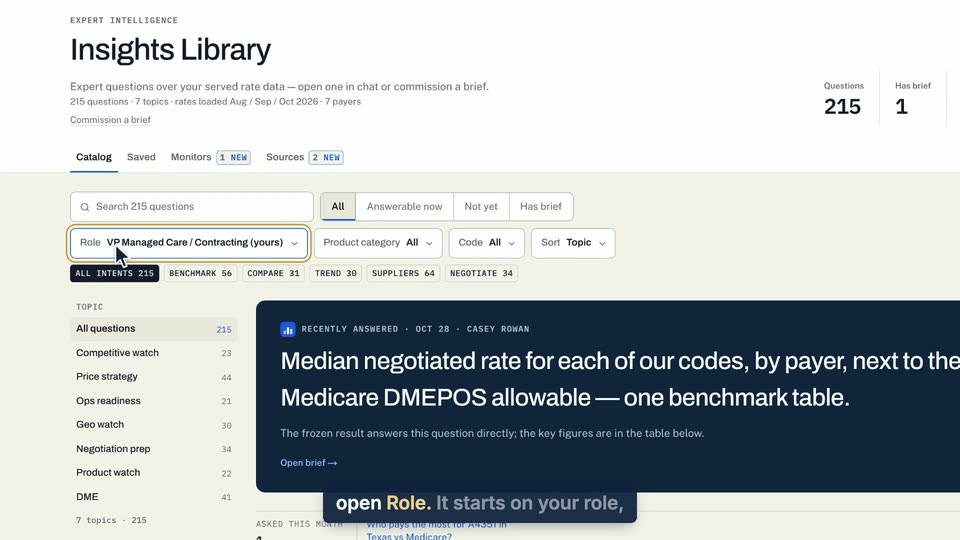
01 In Insights Library, open Role. 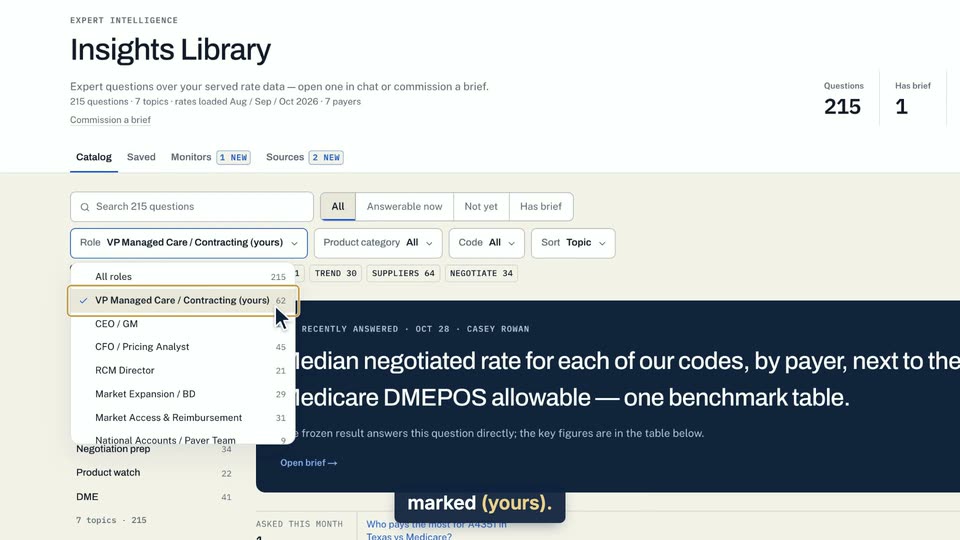
02 It starts on your role, marked (yours). 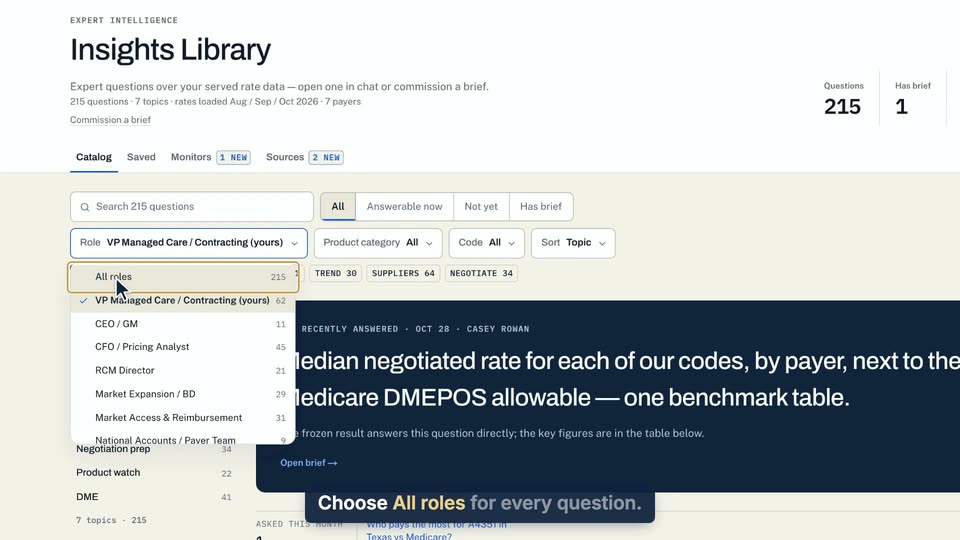
03 Choose All roles for every question.
- Use case
- How do I find a ready-made question to ask?
- Feature
- Catalog search and facets
- Task
- See questions for every role
Written guide
What the status labels mean
Step by step
Before you start. Each question in the Catalog of Insights Library has a status badge at its left.
- Answerable now means the served data can answer it and its codes are in your bundles. Click Open in chat or Fill in to ask it.
- Has brief means a brief generated from this question is already in your workspace. Click View brief under the row's action to open it.
- From and a month, such as From Nov 2026, means the question needs two months of data and only one has loaded. The badge names the first month whose data can answer it, and the row reads Available from that month in place of an action.
- Not yet means the question cannot be asked today, usually because the data it needs is not served. The row says why in place of an action. A question with blanks also shows Not yet when no value in your bundles fits a blank, and its row reads Needs a code in your bundles.
- Not in your bundles means some of its codes belong to a bundle your workspace does not hold. Click the bundle's chip on the row to open Bundles at that bundle.
What you see. The Status links above the list filter by these labels. Answerable now also lists the Has brief questions you can ask now, Not yet also lists the From questions, and Not in your bundles questions show only under All.
Tip. your codes in place of code chips means the question names no code and runs on the codes in your bundles.
- Use case
- How do I find a ready-made question to ask?
- Feature
- Catalog search and facets
- Task
- What the status labels mean