How do I save or monitor a web page?
In the Insights Library, add the page on Monitors to have it checked every 15 days, or on Sources to keep it as a link with a summary. Chat can draft either.
4 videos · 33 sec in all
Video 1 of 4 · 9 sec
Draft a bookmark from Chat
Captions are in the video. The steps and the full narration are below.
Step by step
Before you start. Start on the Chat start page. Click Chat in the top bar, or New chat if a conversation is open.
- Click + Bookmark under the question box. The box now starts with the word Bookmark.
- Type or paste the page address after it, then click Send, the blue paper-plane button at the right end of the box.
- Check the URL, Title and Codes on the BOOKMARK TO CONFIRM card, and edit them if you need to.
- Click Confirm.
What you see. Nothing is saved until you click Confirm. The card then shows Confirmed and a View in Insights Library link, and the page is kept on Sources in the Insights Library.
Tip. A conversation that drafts a bookmark can't save its answers as insights, so ask rate questions in a separate chat.
Read the narration
On Chat, click + Bookmark. Add the page address and click Send. Check the card and click Confirm.
Screens from this video
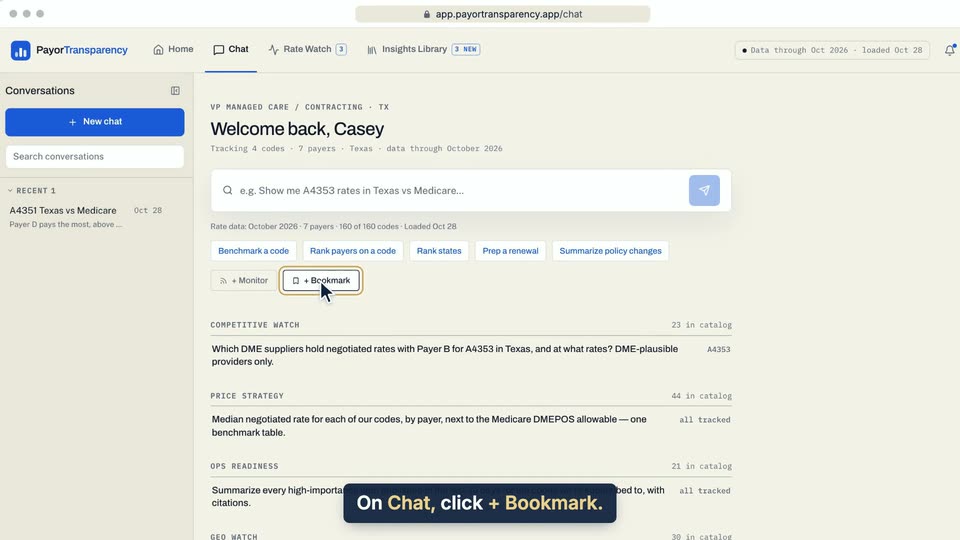
01 On Chat, click + Bookmark. 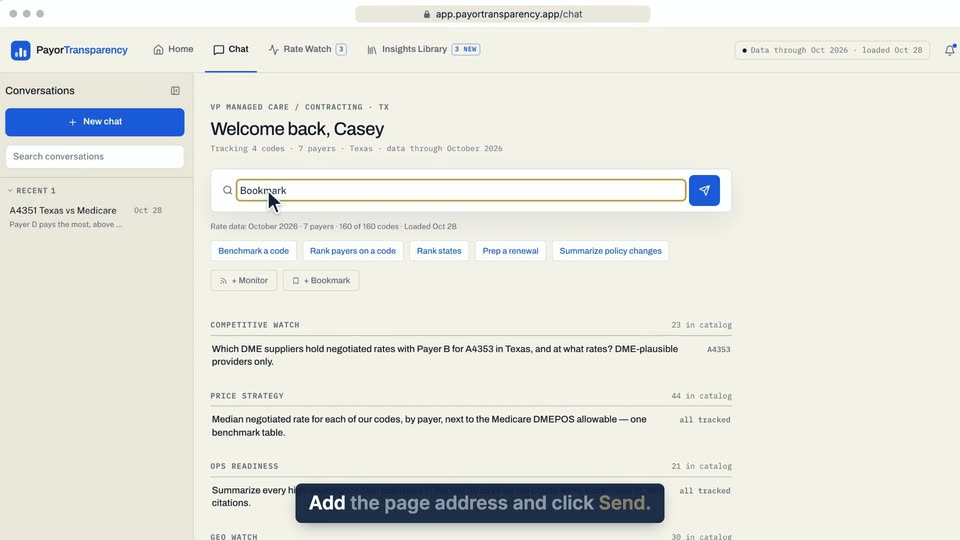
02 Add the page address and click Send. 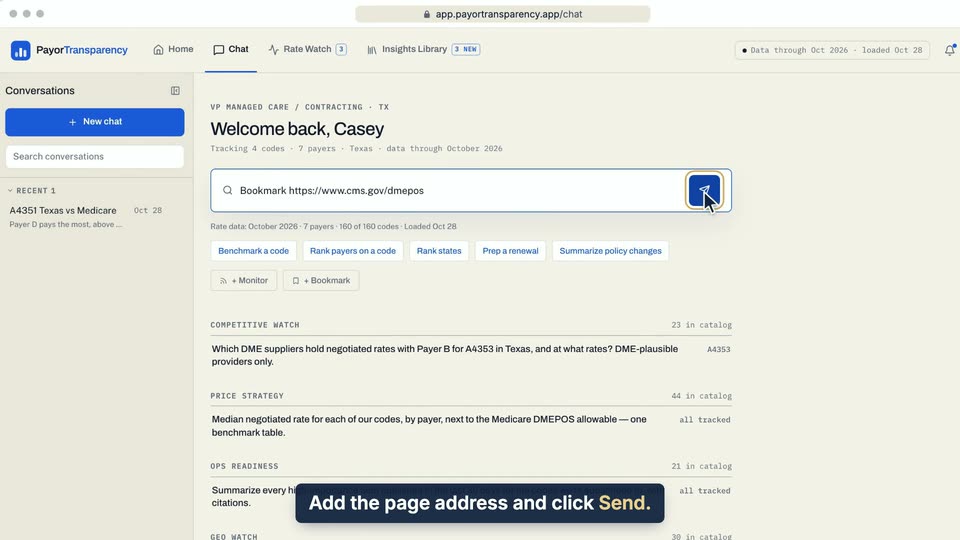
03 Add the page address and click Send. 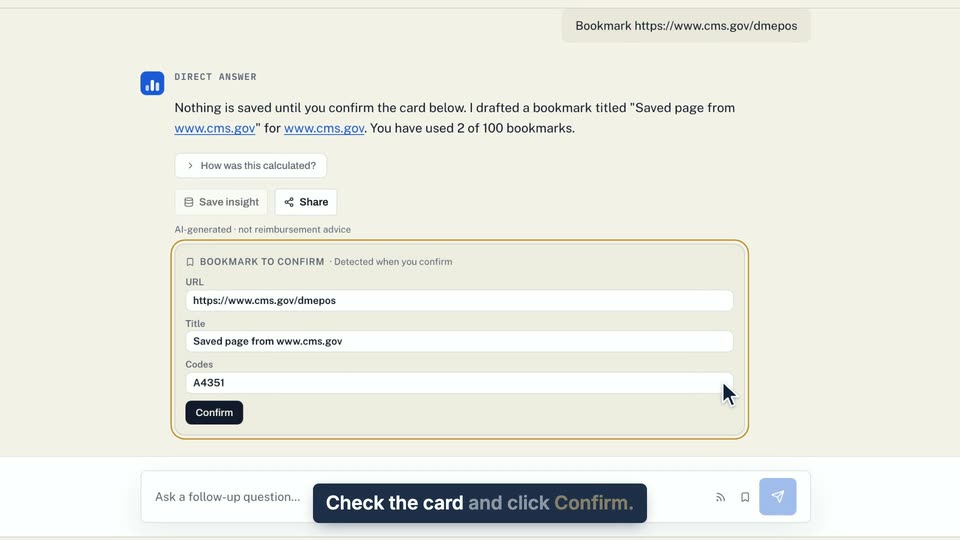
04 Check the card and click Confirm. 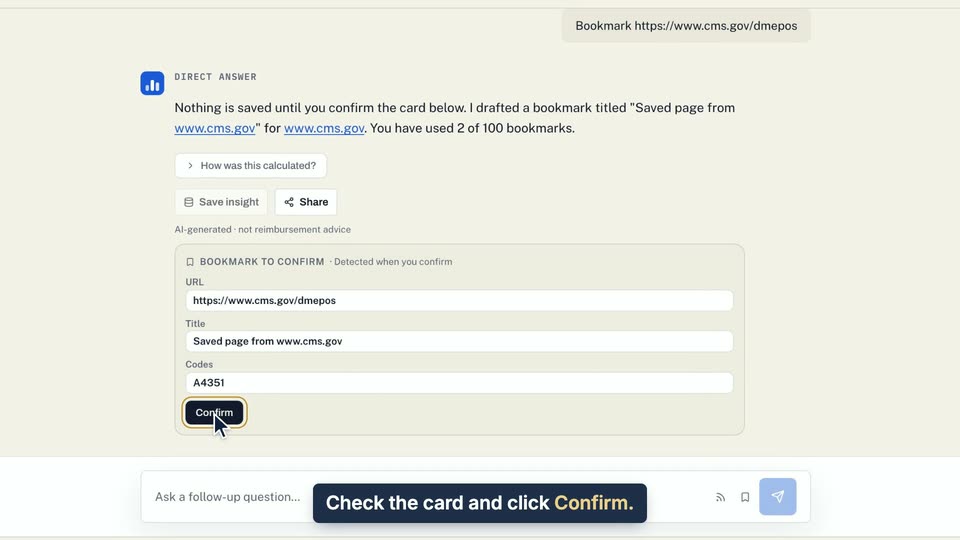
05 Check the card and click Confirm.
- Use case
- How do I save or monitor a web page?
- Task
- Draft a bookmark from Chat
Video 2 of 4 · 9 sec
Add a monitor
Captions are in the video. The steps and the full narration are below.
Step by step
Before you start. Click Insights Library in the top bar, then click the Monitors tab.
- On Monitors, click Add monitor.
- Type or paste the page address in URL.
- In Label, say what you are watching for, and type one or more codes in Codes, separated by commas.
- Click Watch this page.
What you see. The monitor joins your table as not checked yet. Its first check runs at the next daily run, then every 15 days.
Tip. You can have five monitors at a time. To add another, open Details on one, click Remove monitor, then click Remove.
Read the narration
On Monitors, click Add monitor. Fill in URL, then Label, then Codes, and click Watch this page.
Screens from this video
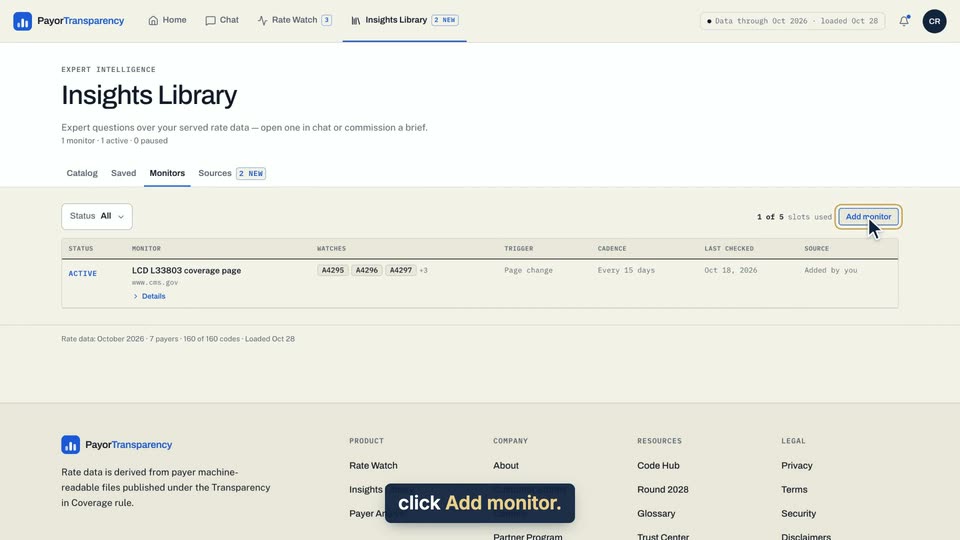
01 On Monitors, click Add monitor. 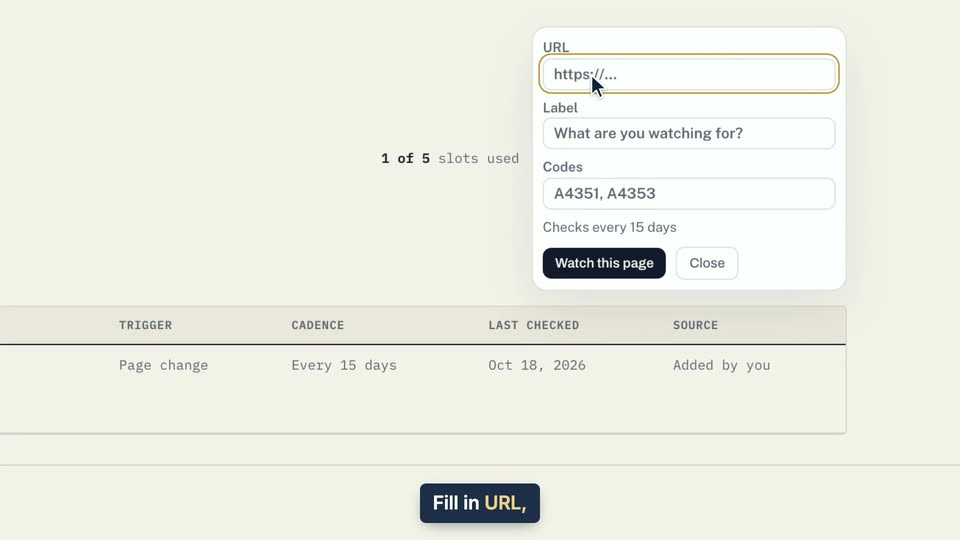
02 Fill in URL, then Label, then Codes, and click Watch this page. 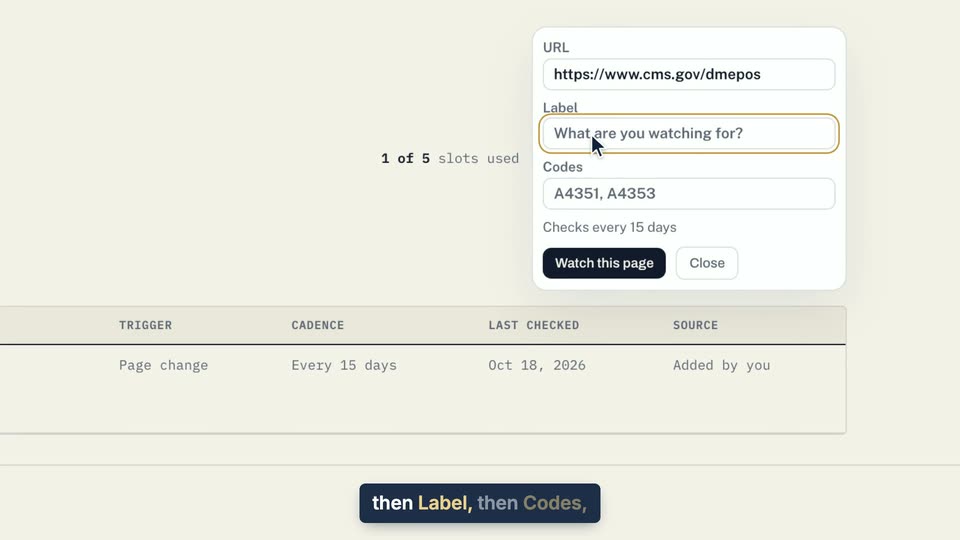
03 Fill in URL, then Label, then Codes, and click Watch this page. 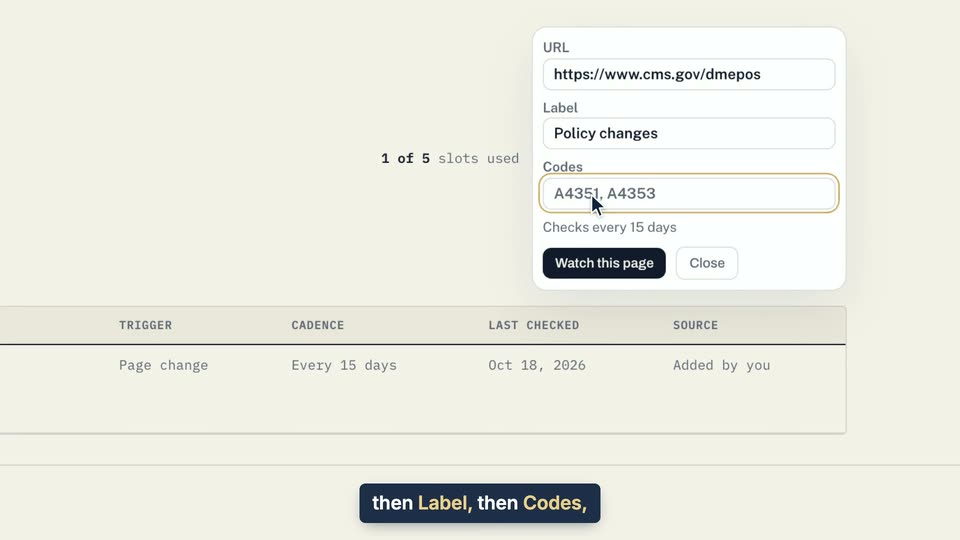
04 Fill in URL, then Label, then Codes, and click Watch this page. 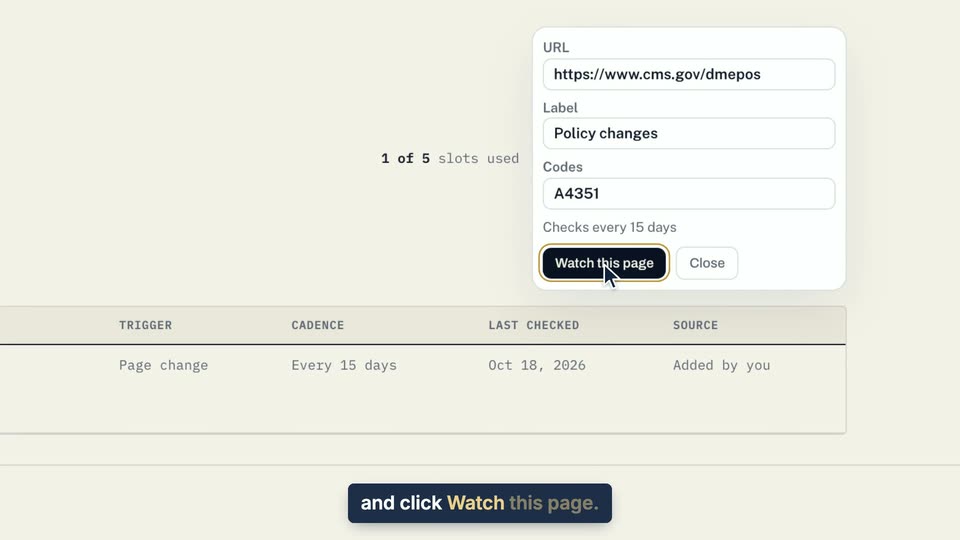
05 Fill in URL, then Label, then Codes, and click Watch this page.
- Use case
- How do I save or monitor a web page?
- Feature
- Monitors tab
- Task
- Add a monitor
Video 3 of 4 · 8 sec
See what a monitor found
Captions are in the video. The steps and the full narration are below.
Step by step
Before you start. Open Insights Library and click the Monitors tab.
- Click Details under the name of the monitor.
- Click the updates count, for example 2 updates, to list what changed.
- Click Open source on an update to read the page in a new tab.
What you see. Each update shows its type, its importance, a title, a short summary and how long ago it was found.
Tip. Use Pause or Remove monitor in Details to stop a monitor.
Read the narration
On Monitors, click Details, then the updates count to see what changed. Open source opens the page.
Screens from this video
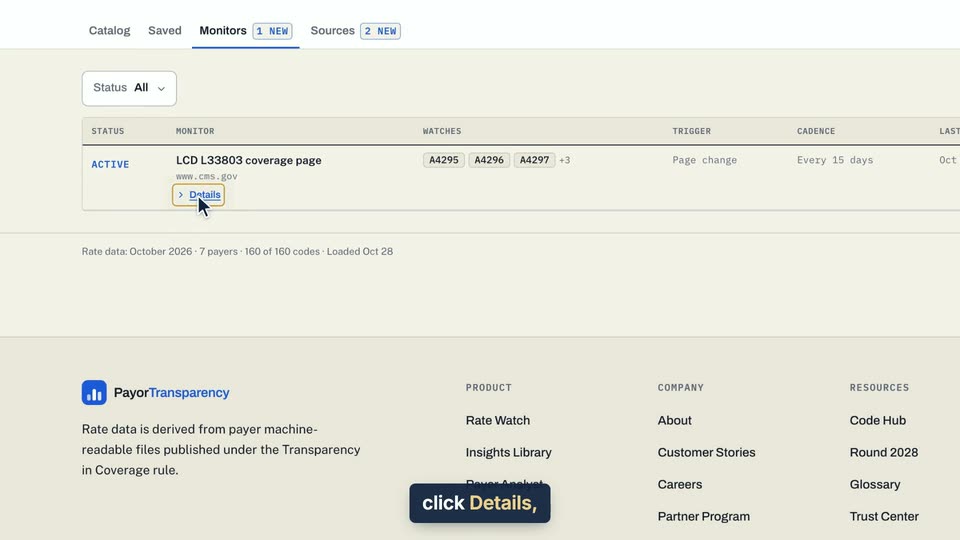
01 On Monitors, click Details, then the updates count to see what changed. 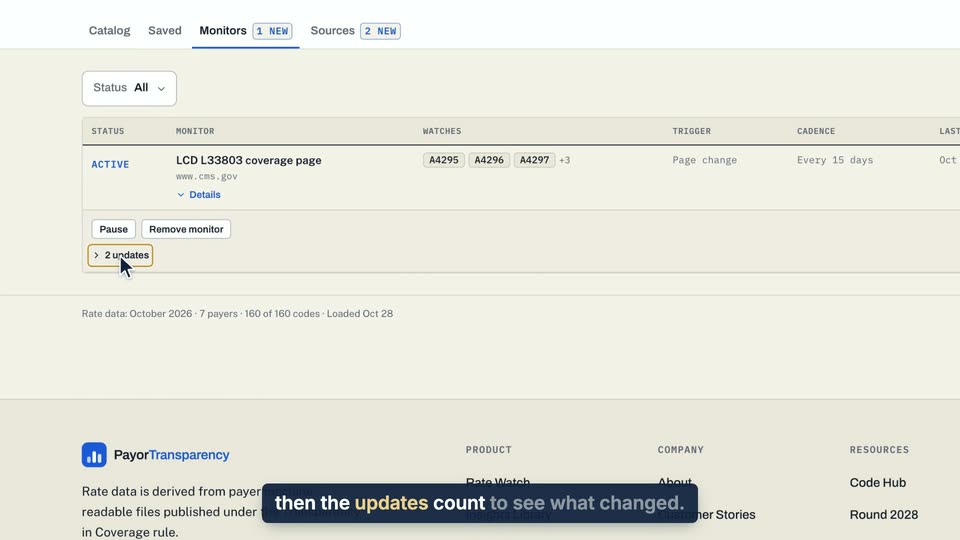
02 On Monitors, click Details, then the updates count to see what changed. 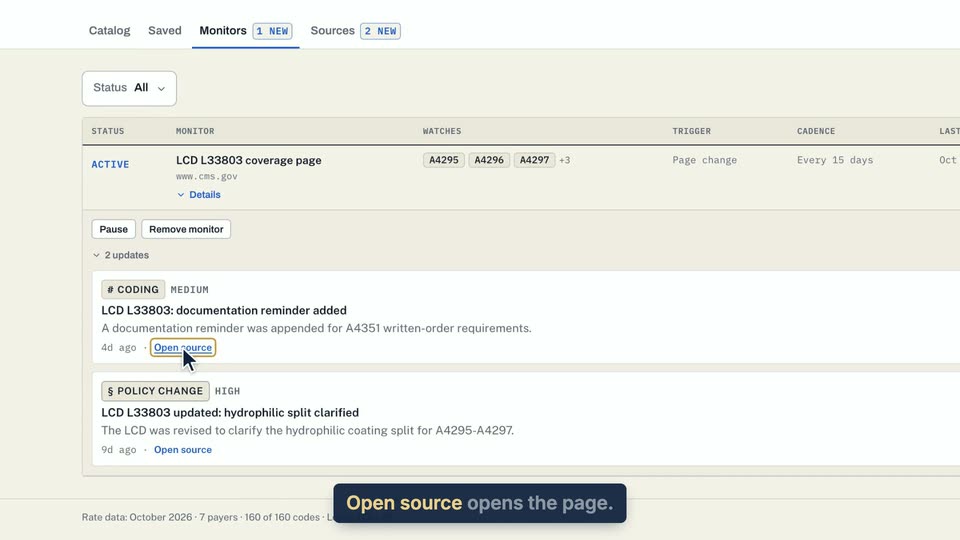
03 Open source opens the page.
- Use case
- How do I save or monitor a web page?
- Feature
- Monitors tab
- Task
- See what a monitor found
Video 4 of 4 · 8 sec
Save a link as a source
Captions are in the video. The steps and the full narration are below.
Step by step
Before you start. Click Insights Library in the top bar, then click the Sources tab.
- On Sources, click Add link.
- Type or paste the page address in URL.
- If you like, fill in Title (optional) and list the codes the page covers in Codes (optional).
- Click Save bookmark.
What you see. The link joins your table as pending, then reads summarized once a short summary is ready.
Tip. A summary appears only when the site allows it, and Retry on a pending or failed row tries again.
Read the narration
On Sources, click Add link, type the page address in URL, and click Save bookmark.
Screens from this video
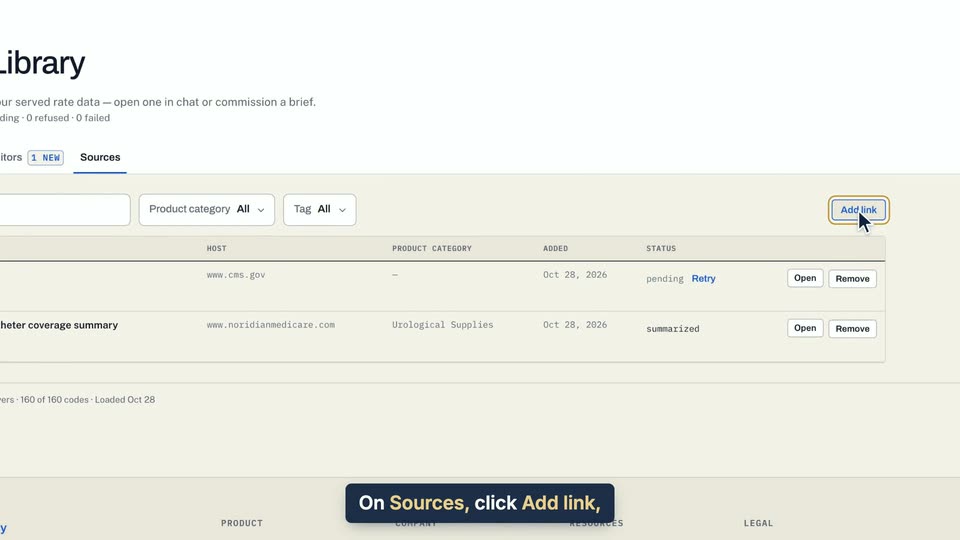
01 On Sources, click Add link, type the page address in URL, and click Save bookmark. 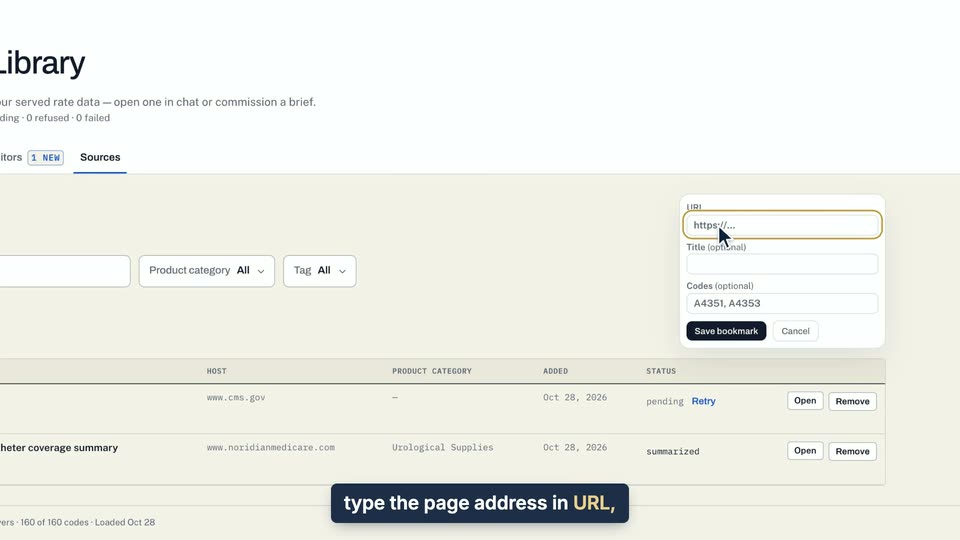
02 On Sources, click Add link, type the page address in URL, and click Save bookmark. 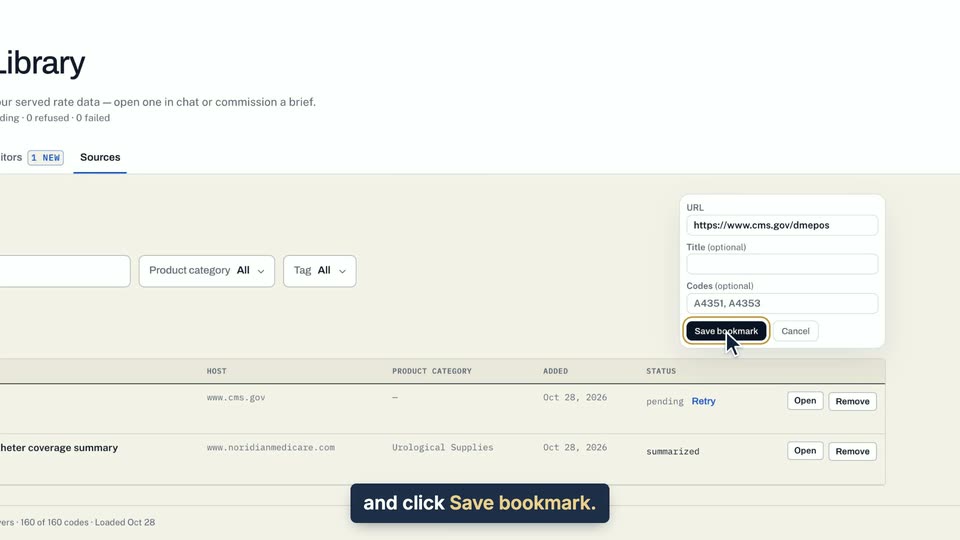
03 On Sources, click Add link, type the page address in URL, and click Save bookmark.
- Use case
- How do I save or monitor a web page?
- Feature
- Sources tab
- Task
- Save a link as a source