How do I mark news items done or snooze them?
Open an item and click Done to file it, or pick a Snooze time to hide it for a while. Triage is yours alone.
2 videos · 18 sec in all
Video 1 of 2 · 9 sec
Mark an item done
Captions are in the video. The steps and the full narration are below.
Step by step
Before you start. Start on the News feed with at least one item under Open.
- On Rate Watch, click News, then click Policy & industry.
- Under Open, click an item's title to open it.
- In the opened item, click Done, the first button in its row of actions.
- To see it again, click Done in the status tabs above the feed.
What you see. The item leaves Open and moves to Done, for you alone. Teammates keep their own lists.
Tip. To bring an item back, open it under Done and click Move to Open.
Read the narration
In Policy & industry, open an item and click Done. It leaves Open and moves to Done.
Screens from this video
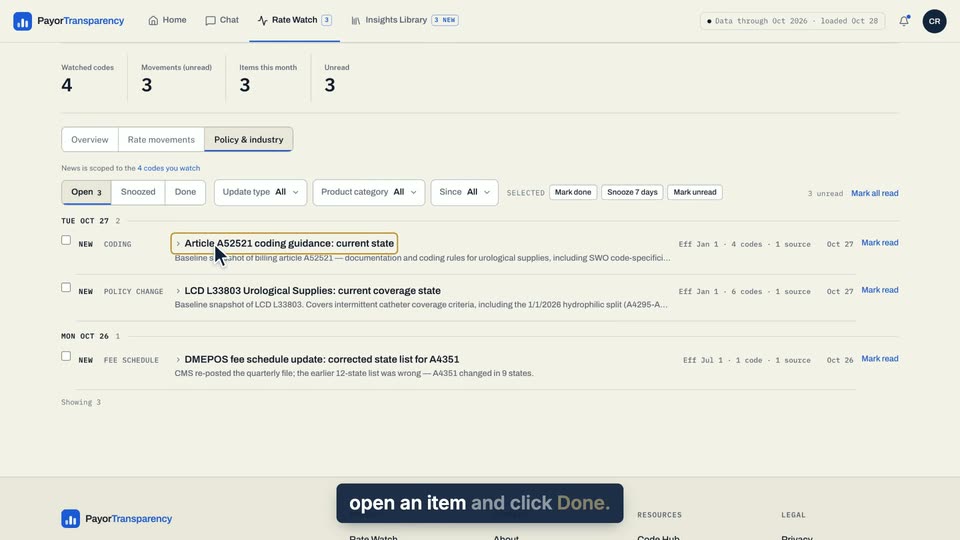
01 In Policy & industry, open an item and click Done. 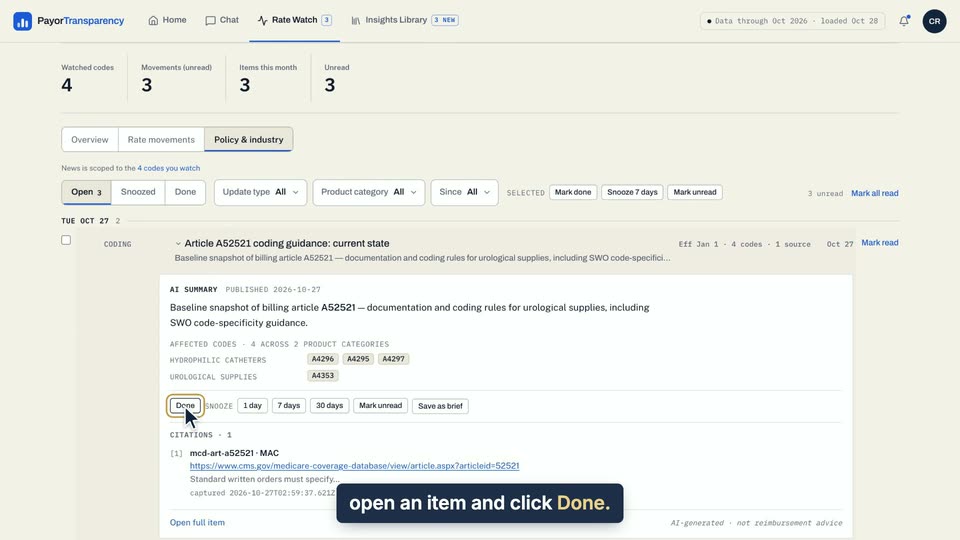
02 In Policy & industry, open an item and click Done. 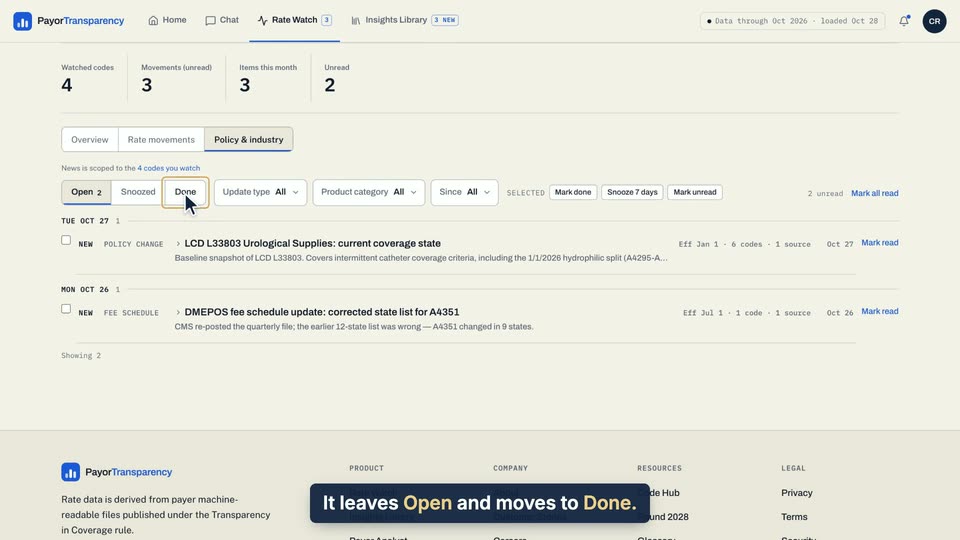
03 It leaves Open and moves to Done.
- Use case
- How do I mark news items done or snooze them?
- Task
- Mark an item done
Video 2 of 2 · 9 sec
Snooze an item
Captions are in the video. The steps and the full narration are below.
Step by step
Before you start. You start on the Open list of the Policy & industry view in News.
- On Rate Watch, click News, then click Policy & industry.
- Click an item's title to open it.
- Under Snooze, click 1 day, 7 days or 30 days.
- Click Snoozed to see the item you put off.
What you see. The item leaves Open and waits under Snoozed. When the time is up, it returns to Open by itself.
Tip. To bring an item back early, open it under Snoozed and click Move to Open.
Read the narration
In News, open an item. Under Snooze, pick 7 days. It waits in Snoozed, then returns to Open.
Screens from this video
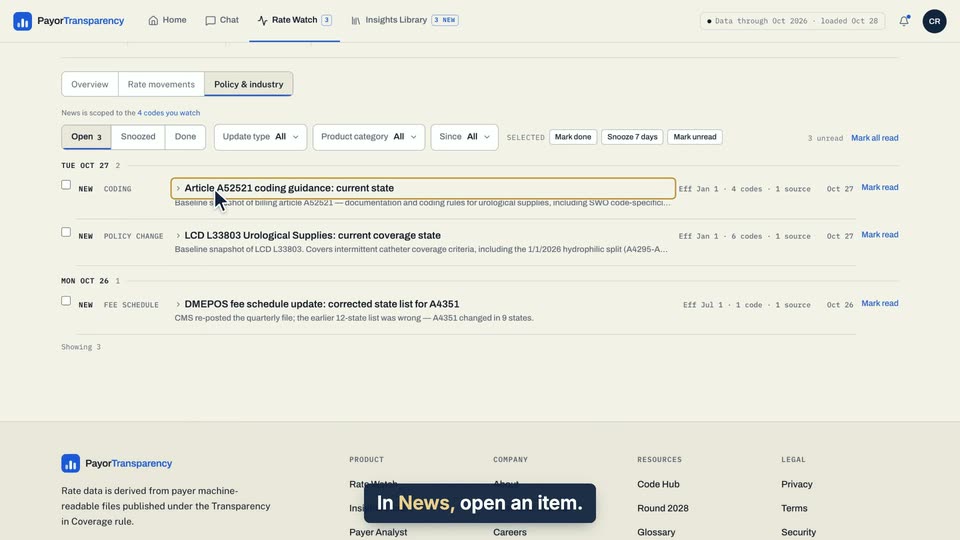
01 In News, open an item. 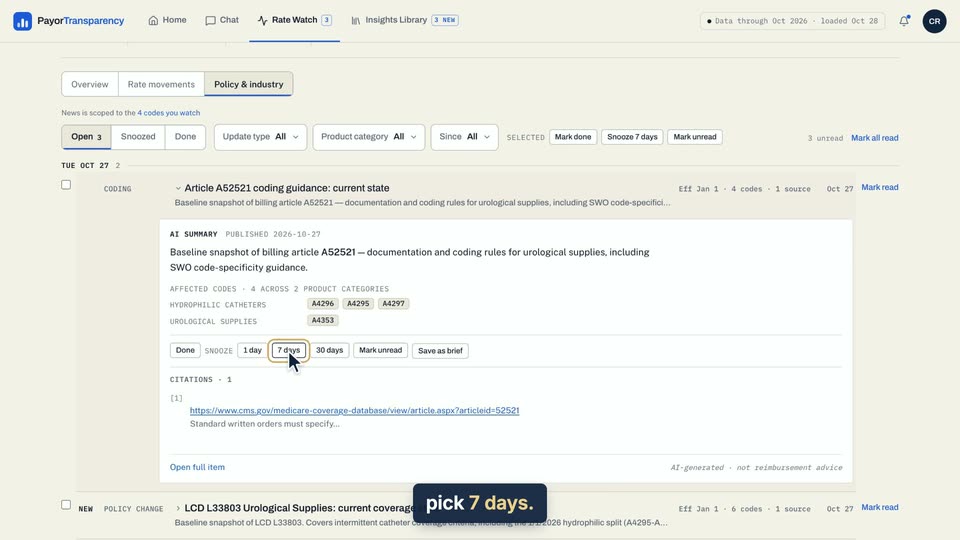
02 Under Snooze, pick 7 days. 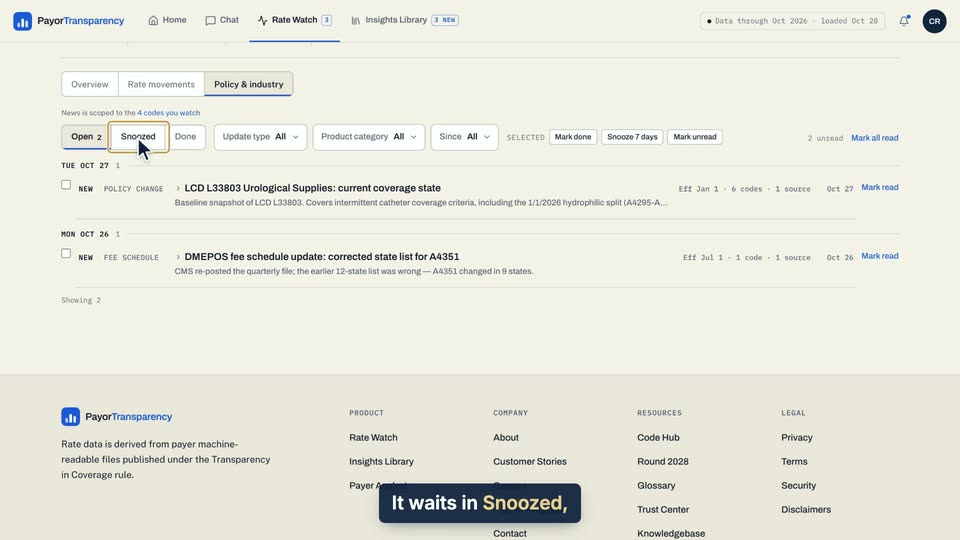
03 It waits in Snoozed, then returns to Open.
- Use case
- How do I mark news items done or snooze them?
- Task
- Snooze an item