How do I share a news item with my team?
Open the item and click Save as brief. It becomes a Private brief in the Insights Library that you can share with your team, comment on or export.
1 video · 9 sec in all
Video 1 of 1 · 9 sec
Save a news item as a brief
Captions are in the video. The steps and the full narration are below.
Step by step
Before you start. Start in Rate Watch on the News tab, in the Policy & industry view.
- Click an item's title to open it.
- Click Save as brief. The brief opens, set to Private.
- To show it to your team, click Shared with team under the title. The change saves at once.
What you see. Your teammates can now open the brief in Insights Library and add comments. Only you can share or rename it.
Tip. Click Save as brief on the same item again and it reopens the brief you already saved.
Read the narration
Open a News item and click Save as brief. The brief starts Private. Click Shared with team.
Screens from this video
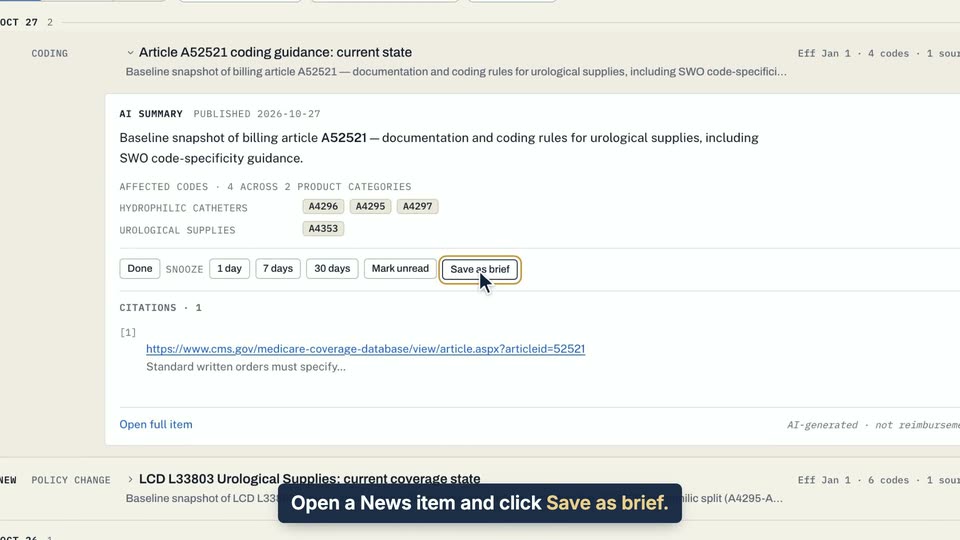
01 Open a News item and click Save as brief. 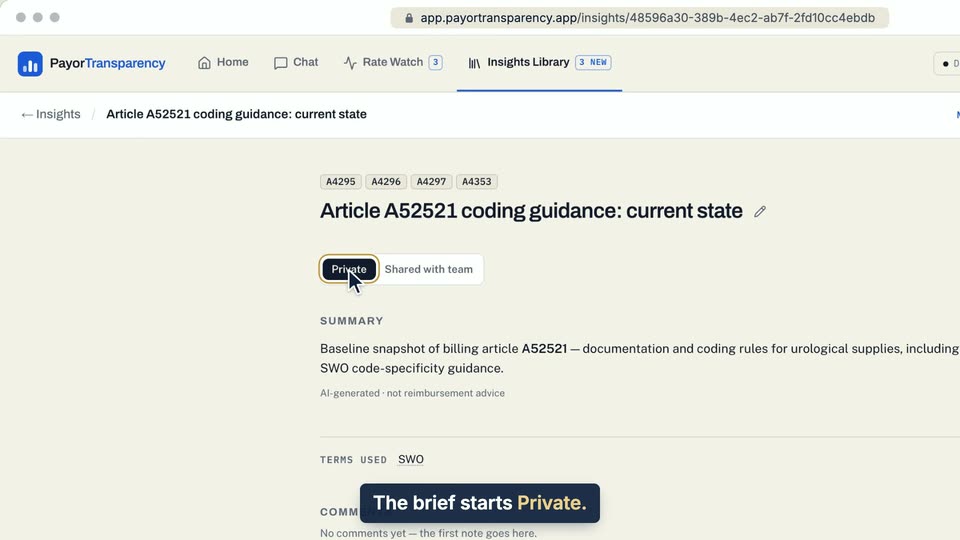
02 The brief starts Private. 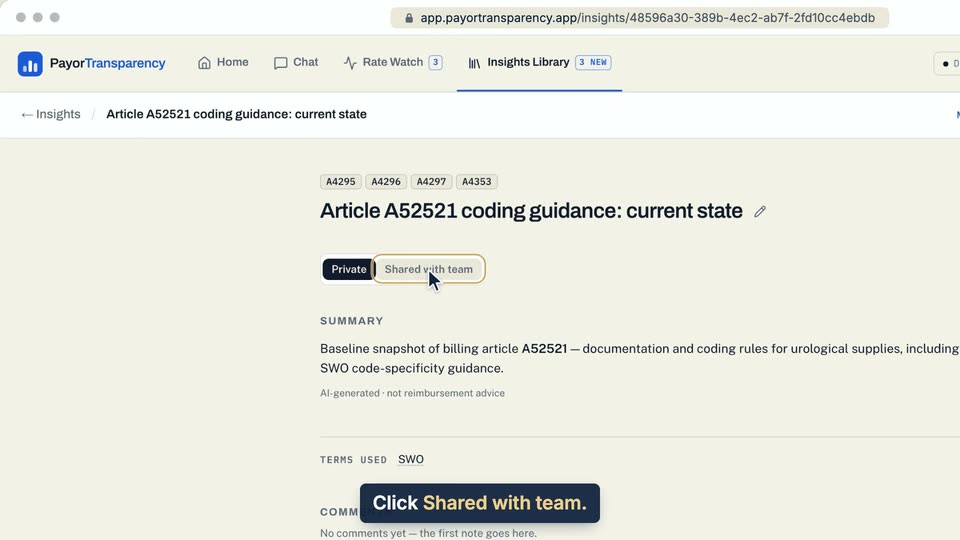
03 Click Shared with team.
- Use case
- How do I share a news item with my team?
- Feature
- Save as brief
- Task
- Save a news item as a brief