How do I share or discuss a brief?
On a brief you own, switch to Shared with team so your workspace can read and comment, or click Share for a read-only link that works for 30 days.
2 videos · 15 sec in all · 1 written guide
Video 1 of 2 · 8 sec
Revoke a share link
Captions are in the video. The steps and the full narration are below.
Step by step
Before you start. You need a brief you own with a share link. Each click on Share in the brief's toolbar makes a new one.
- Open the brief from Insights Library, under Saved.
- Scroll down to Share links, above Comments.
- Click Revoke next to the link you want to stop.
What you see. The link is struck through and reads revoked with the date. Anyone who opens it now sees a page saying the link is not available.
Tip. Revoke has no confirm step. To share the brief again, click Share for a fresh link.
Read the narration
Screens from this video
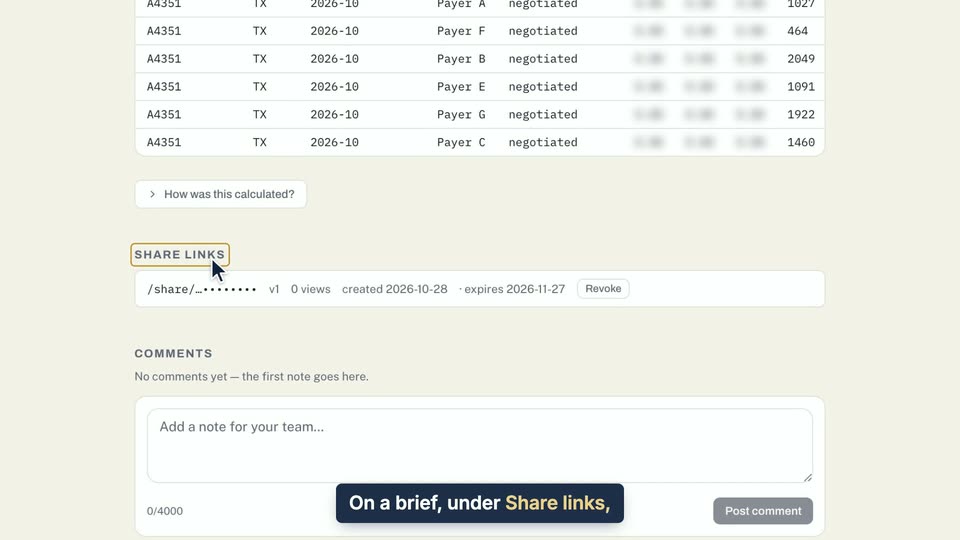
01 On a brief, under Share links, click Revoke. 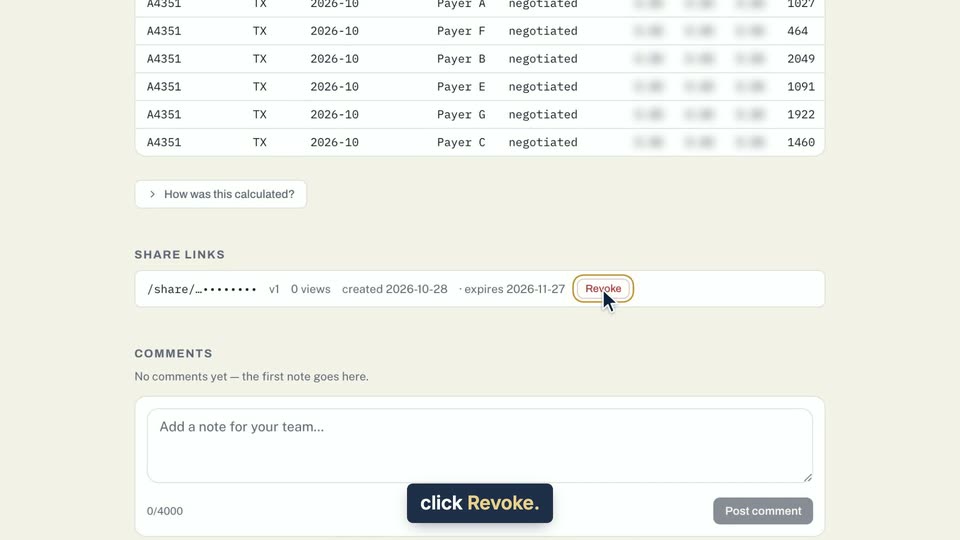
02 On a brief, under Share links, click Revoke. 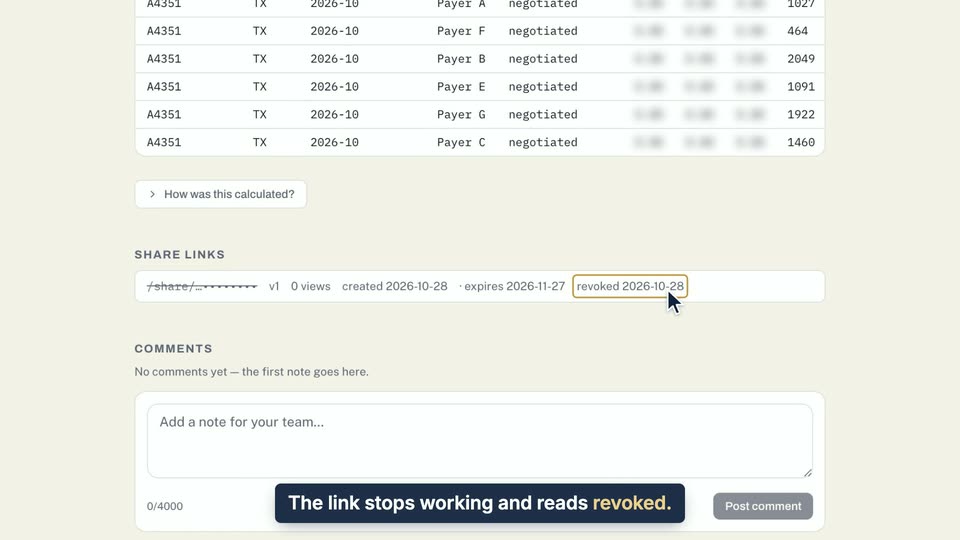
03 The link stops working and reads revoked.
- Use case
- How do I share or discuss a brief?
- Feature
- Brief share links
- Task
- Revoke a share link
Video 2 of 2 · 8 sec
Comment on a brief
Captions are in the video. The steps and the full narration are below.
Step by step
Before you start. Open the brief from Saved in Insights Library. You can comment on your own briefs and on briefs a teammate has set to Shared with team.
What you see. Your note appears under Comments with your name and the date.
Tip. Comments cannot be edited or deleted, and teammates can read them when the brief is Shared with team.
Read the narration
On a brief, click Comment and type a note for your team. Then click Post comment.
Screens from this video