How do I see policy and coding changes for my codes?
Open Rate Watch and click News. Policy & industry lists items for the codes you watch, or for every code in your bundles when you watch none.
3 videos · 24 sec in all
Video 1 of 3 · 8 sec
Open the News tab
Captions are in the video. The steps and the full narration are below.
Step by step
Before you start. Click Rate Watch in the top bar.
- In the row of tabs under the Rate Watch title, click News.
- Switch views with Overview, Rate movements and Policy & industry.
What you see. News opens on Overview, scoped to the codes you watch. When you watch none, it covers the codes in your bundles.
Tip. Overview leads with the newest item. Rate movements lists your rate alerts, and Policy & industry lists the policy, coding and industry items.
Read the narration
On Rate Watch, click the News tab. Switch views with Overview, Rate movements and Policy & industry.
Screens from this video
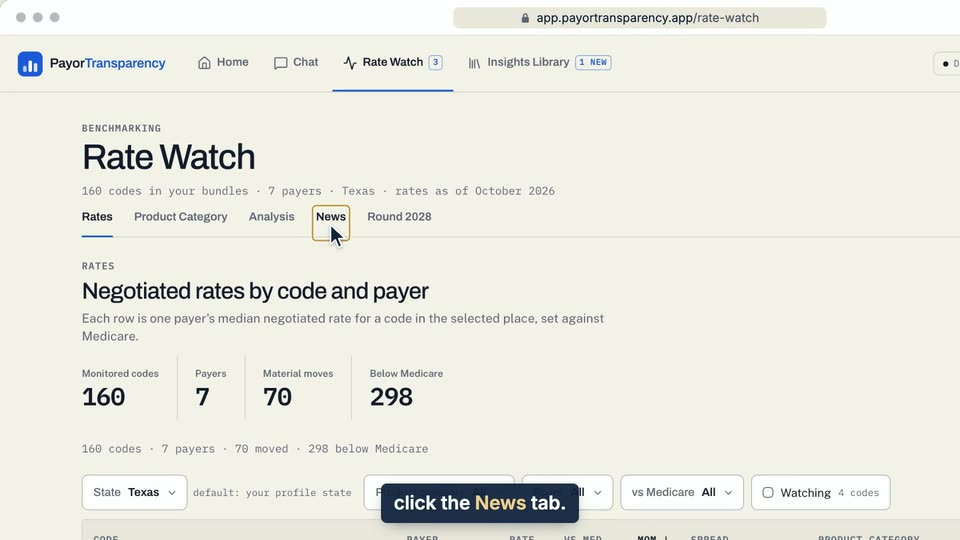
01 On Rate Watch, click the News tab. 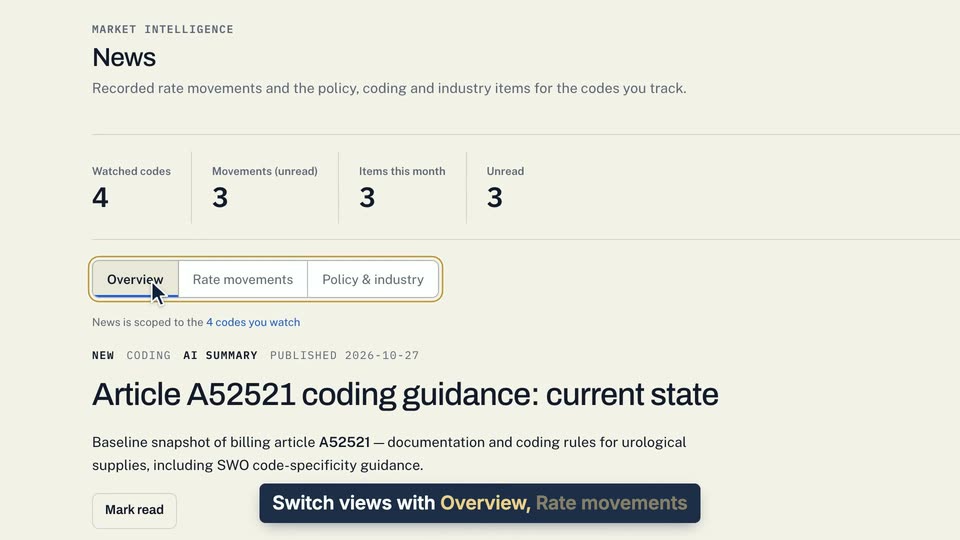
02 Switch views with Overview, Rate movements and Policy & industry.
- Use case
- How do I see policy and coding changes for my codes?
- Task
- Open the News tab
Video 2 of 3 · 8 sec
Read an item's summary
Captions are in the video. The steps and the full narration are below.
Step by step
Before you start. Click Rate Watch in the top bar, then News, then Policy & industry.
- Click an item's title. The row opens in place.
- Read the AI summary, then Affected codes, which lists the item's codes by product category.
- Check Citations for the sources behind the summary. The summary is AI-generated and is not reimbursement advice.
What you see. Opening the item marks it read, so its NEW label clears.
Tip. Click Open full item to see the item in a side panel. A corrected item lists the item it replaces under History.
Read the narration
In Policy & industry, click a title. It opens in place, with an AI summary and Affected codes.
Screens from this video
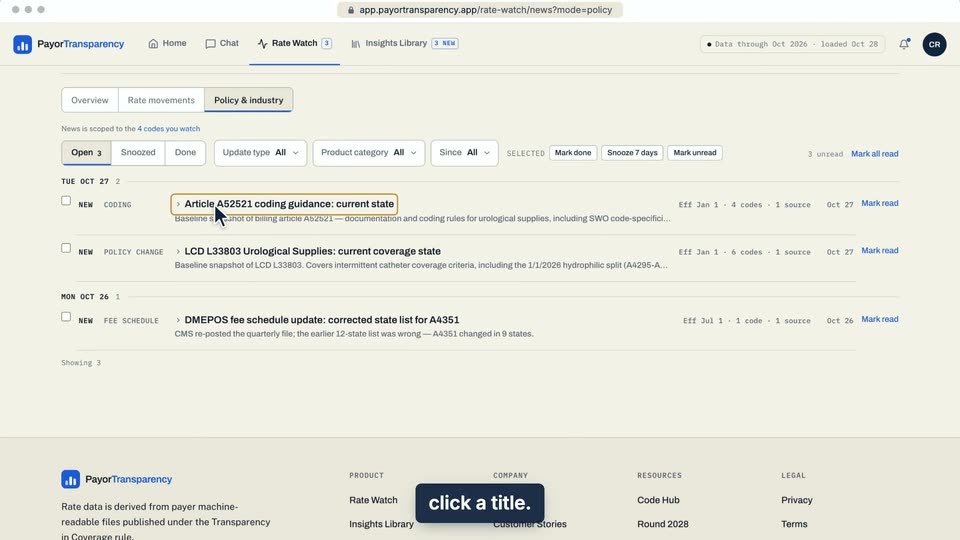
01 In Policy & industry, click a title. 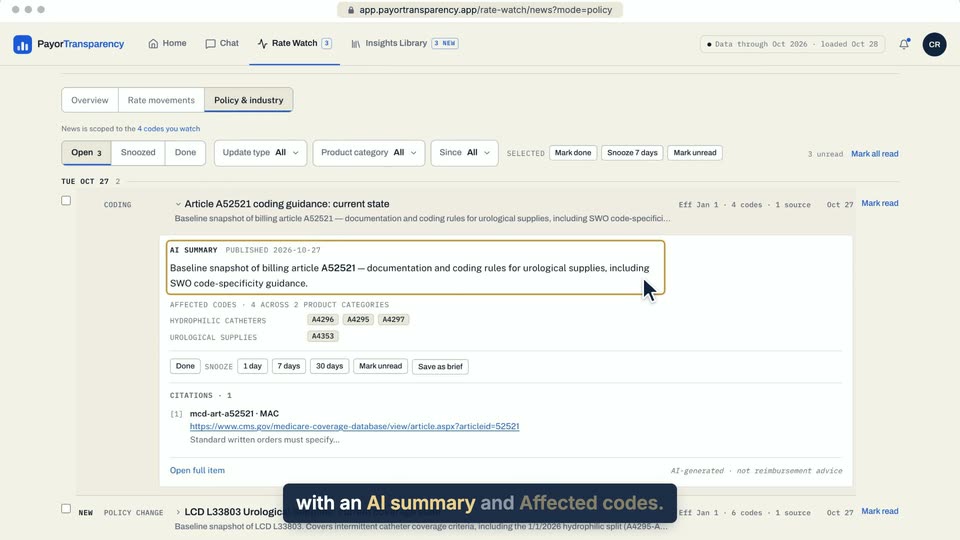
02 It opens in place, with an AI summary and Affected codes. 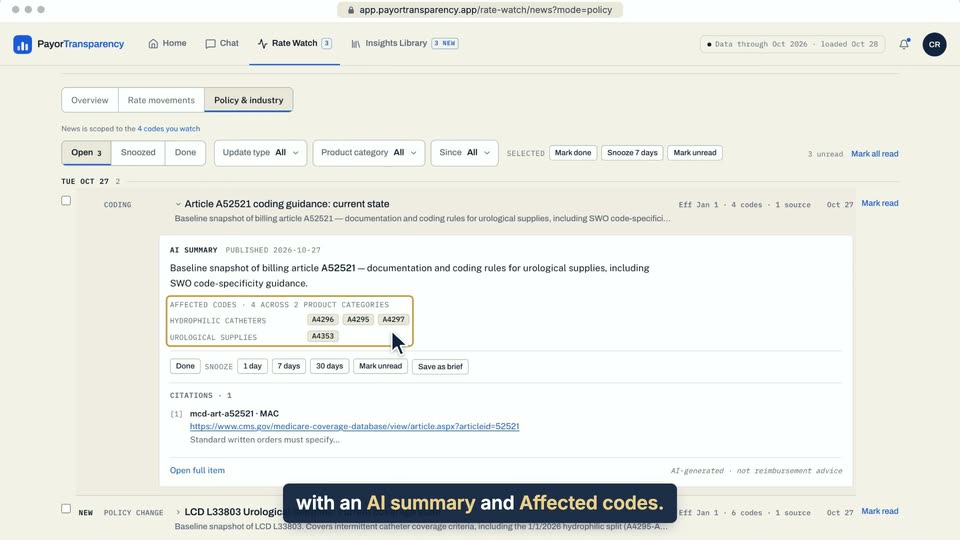
03 It opens in place, with an AI summary and Affected codes.
- Use case
- How do I see policy and coding changes for my codes?
- Feature
- Policy & industry feed
- Task
- Read an item's summary
Video 3 of 3 · 8 sec
Go from an item to the code's rates
Captions are in the video. The steps and the full narration are below.
Step by step
Before you start. Open Rate Watch, click News, then click Policy & industry.
- Click an item's title. It opens in place.
- Under Affected codes, click a code, for example A4351.
What you see. The code's own Rate Watch page opens, with its benchmark and its per-payer rates.
Tip. A dashed code with a lock is outside your bundles.
Read the narration
In Policy & industry, open an item. Under Affected codes, click a code to see its rates.
Screens from this video
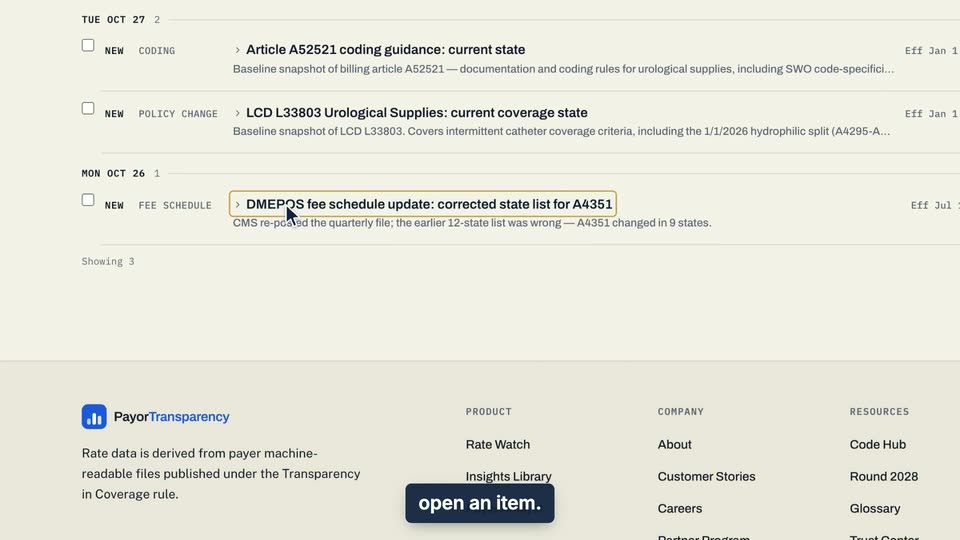
01 In Policy & industry, open an item. 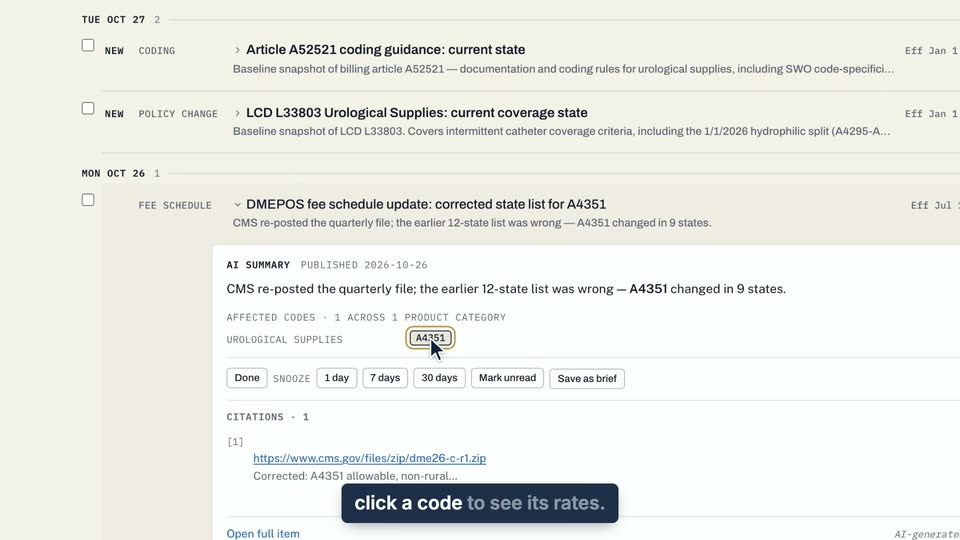
02 Under Affected codes, click a code to see its rates.
- Use case
- How do I see policy and coding changes for my codes?
- Feature
- Policy & industry feed
- Task
- Go from an item to the code's rates