How do I filter the news?
Use the Update type, Product category and Since menus above the feed. Click Policy & industry again to clear them.
1 video · 8 sec in all
Video 1 of 1 · 8 sec
Filter news by type
Captions are in the video. The steps and the full narration are below.
Step by step
Before you start. The filters sit above the feed on the Policy & industry view of News.
- On Rate Watch, click News, then click Policy & industry.
- Click the Update type menu in the filter row above the feed.
- Pick a type, for example Coding.
What you see. The Update type menu now shows Coding, and the feed lists only coding items.
Tip. Product category and Since work the same way, and All update types brings every item back.
Read the narration
In Policy & industry, open Update type and pick Coding. The feed shows only coding items.
Screens from this video
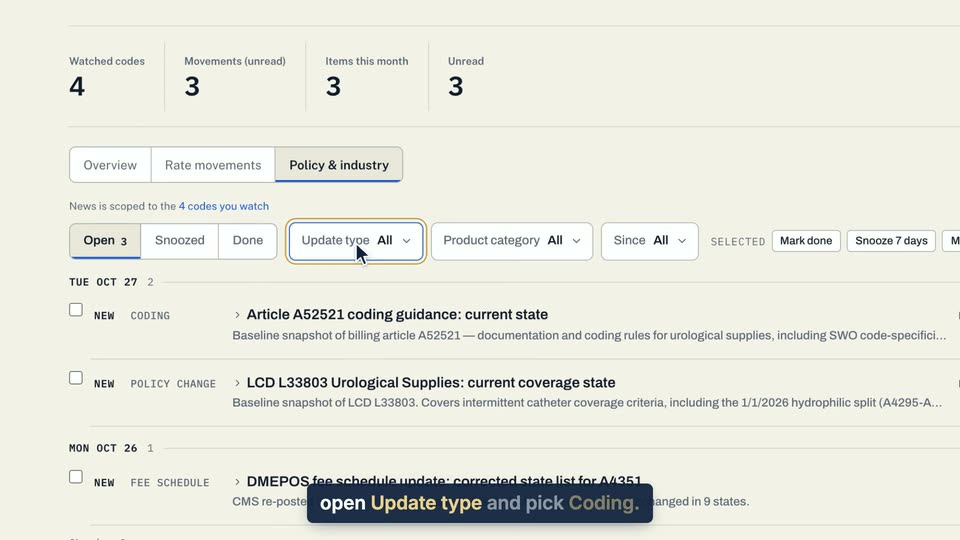
01 In Policy & industry, open Update type and pick Coding. 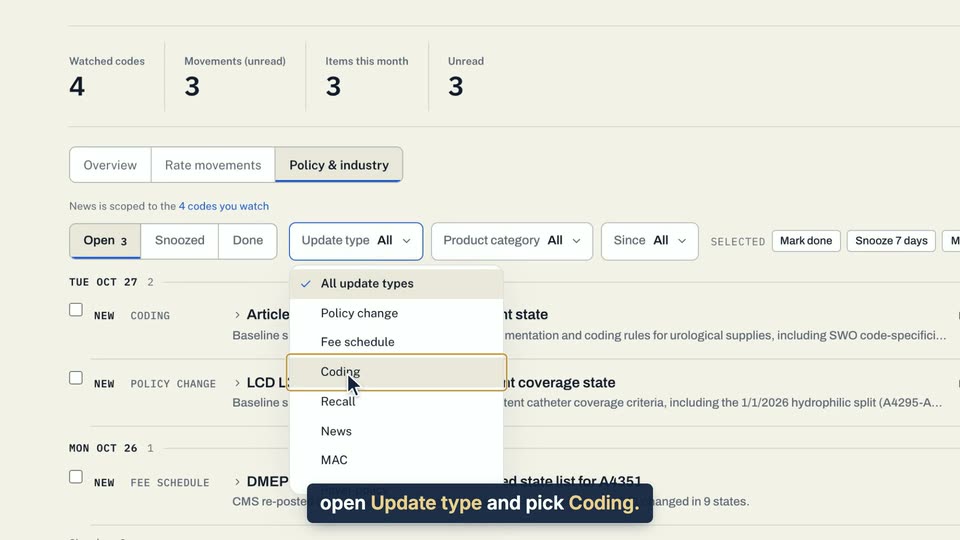
02 In Policy & industry, open Update type and pick Coding. 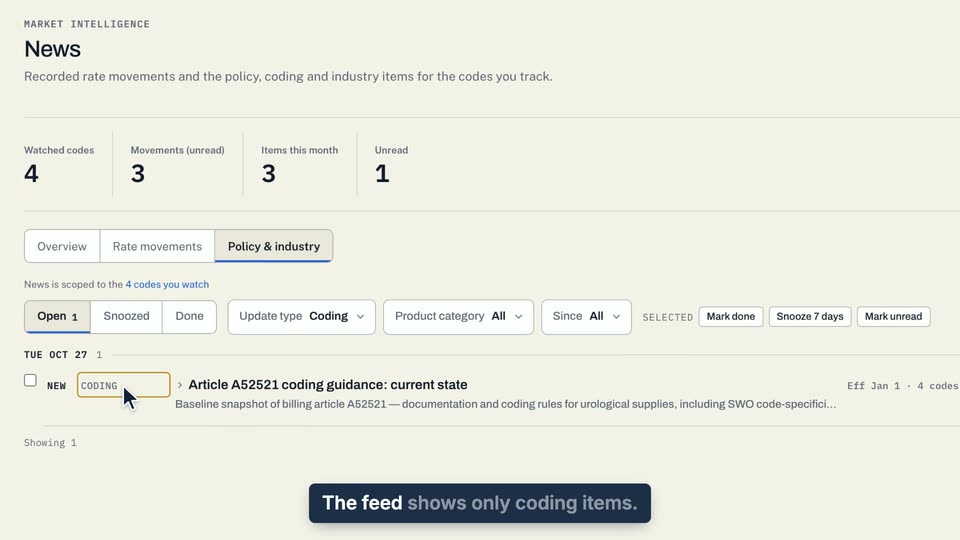
03 The feed shows only coding items.
- Use case
- How do I filter the news?
- Feature
- News filters and paging
- Task
- Filter news by type