How do I add a code bundle?
An owner clicks a lock or Add on a locked bundle to open Bundles at it, then clicks Add on that row. Members ask an owner.
2 videos · 16 sec in all · 1 written guide
Video 1 of 2 · 8 sec
Open bundles from a locked code
Captions are in the video. The steps and the full narration are below.
Step by step
Before you start. Codes outside your workspace's bundles never show as rows on the board. Each missing bundle gets its own line under the table.
- Open Rate Watch and stay on the Rates tab.
- Scroll down to Not in your bundles, under the table.
- Click See bundles on the bundle you need. Bundles opens at that bundle.
- If you are a workspace owner, click Add on that bundle. On an annual plan, confirm with Yes, add.
What you see. The Bundles panel opens with that bundle outlined, showing its codes and price.
Tip. Only a workspace owner can add a bundle, so members ask an owner.
Read the narration
Under Not in your bundles, click See bundles. Bundles opens at that bundle, where owners click Add.
Screens from this video
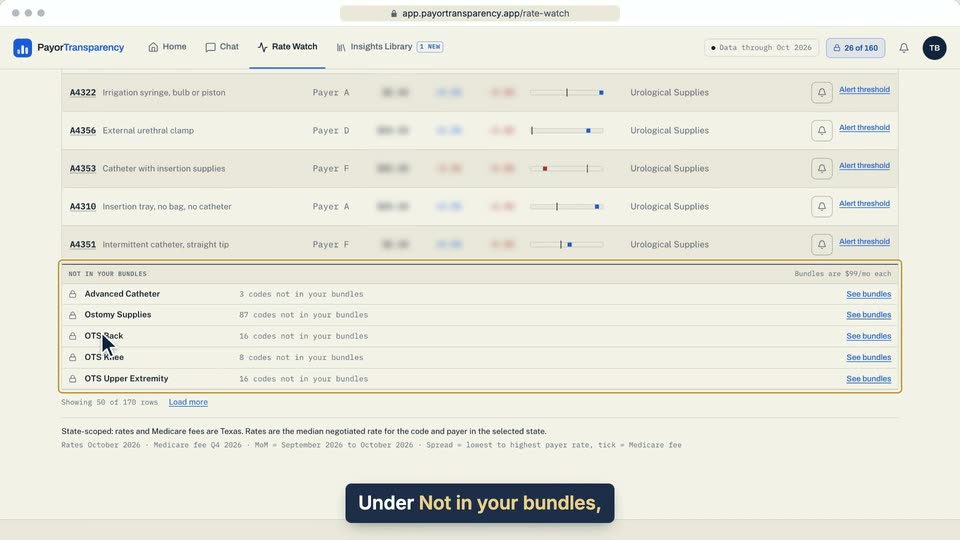
01 Under Not in your bundles, click See bundles. 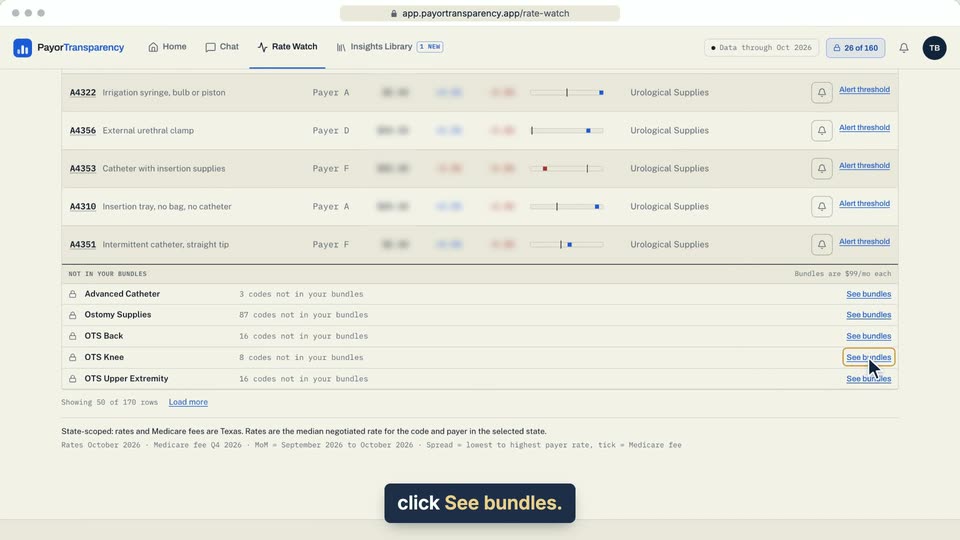
02 Under Not in your bundles, click See bundles. 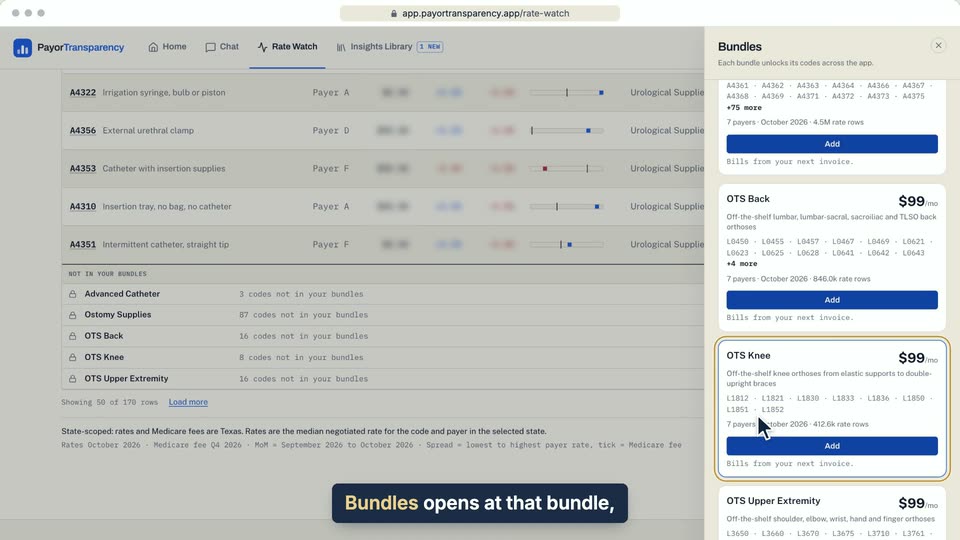
03 Bundles opens at that bundle, where owners click Add. 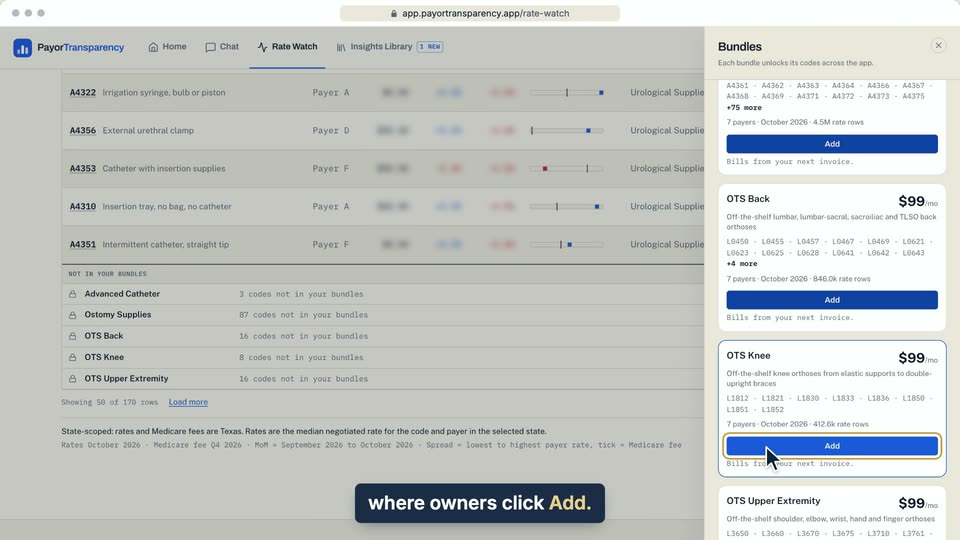
04 Bundles opens at that bundle, where owners click Add.
- Use case
- How do I add a code bundle?
- Task
- Open bundles from a locked code
Written guide
Add a bundle to your plan
Step by step
Before you start. Only a workspace owner can add a bundle, and a member sees a see Team link instead. These steps are for a workspace that already has a plan. With no plan yet, the button in Bundles reads Continue to checkout.
- Click your initials in the top bar, choose Profile & preferences and click the Code bundles tab.
- On a bundle marked Locked, click Add. You can also click See bundles under Not in your bundles on Rate Watch.
- Bundles opens with that bundle outlined. On a month to month plan, the line under Add reads Bills from your next invoice.
- Click Add on that row. On month to month, the bundle turns Active right away.
- On an annual plan, the first click asks before it charges. It shows about how much is charged now for the time left in your paid year, then the yearly price. Click Yes, add, or Not now to back out.
- If the row says your plan is scheduled to end, close Bundles and click Keep plan under Base platform subscription first.
What you see. The bundle shows Active, and its codes unlock across the app.
Tip. On an annual plan, your receipt from Link shows the exact amount. If the card is declined, nothing is added or charged.
- Use case
- How do I add a code bundle?
- Feature
- Bundles drawer
- Task
- Add a bundle to your plan
Video 2 of 2 · 8 sec
Ask an owner for access
Captions are in the video. The steps and the full narration are below.
Step by step
Before you start. A code outside your workspace's bundles opens locked, and only a workspace owner can add its bundle.
- Open the locked code and scroll down to the lock message under the code name.
- The message says a workspace owner can add bundles. Click see Team at the end of that line.
- On the Team page, under MEMBERS, find the person marked OWNER.
- Ask that owner to add the bundle for you.
What you see. The Team page lists everyone in your workspace, with an OWNER or MEMBER pill at the end of each row.
Tip. The lock message names the bundle that unlocks the code, so you can tell the owner which one to add.
Read the narration
On a locked code, only an owner can add bundles. Click see Team and ask the OWNER.
Screens from this video
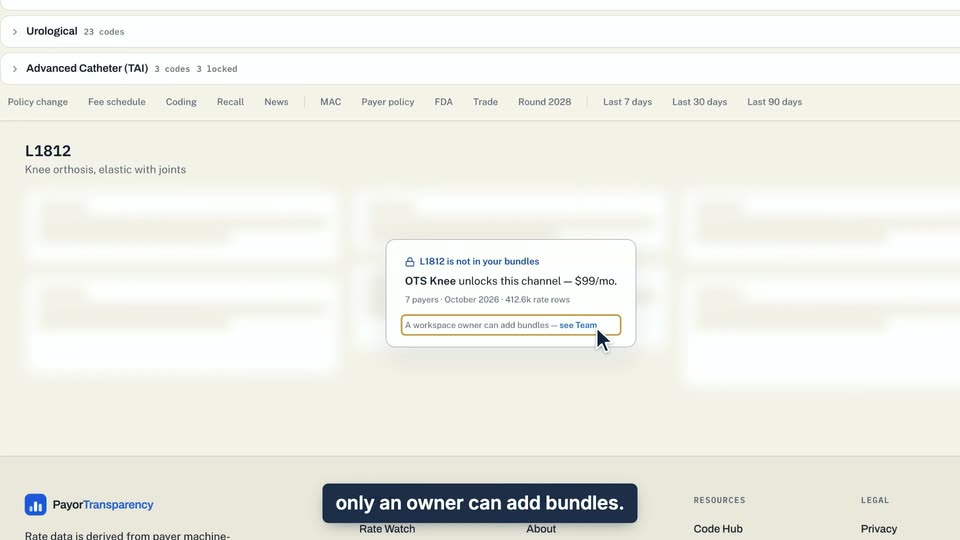
01 On a locked code, only an owner can add bundles. 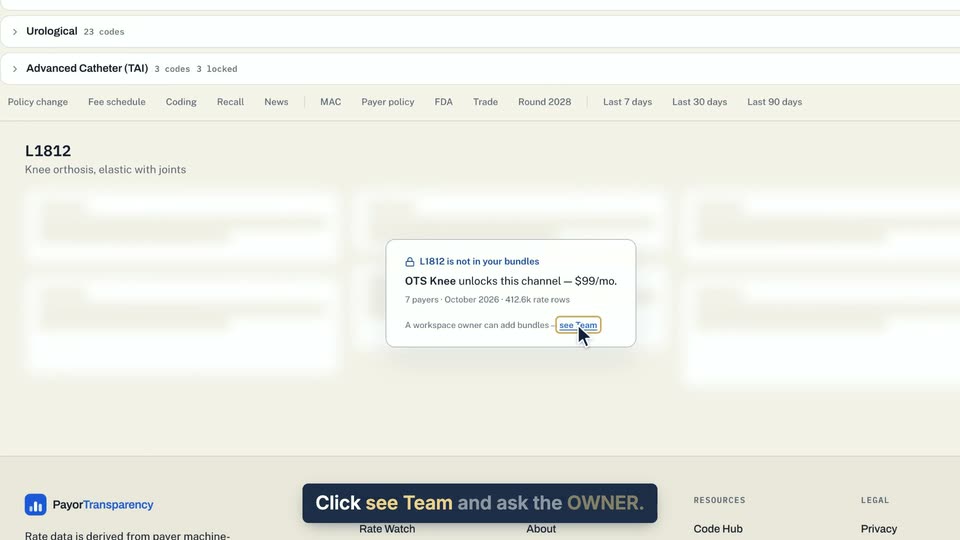
02 Click see Team and ask the OWNER. 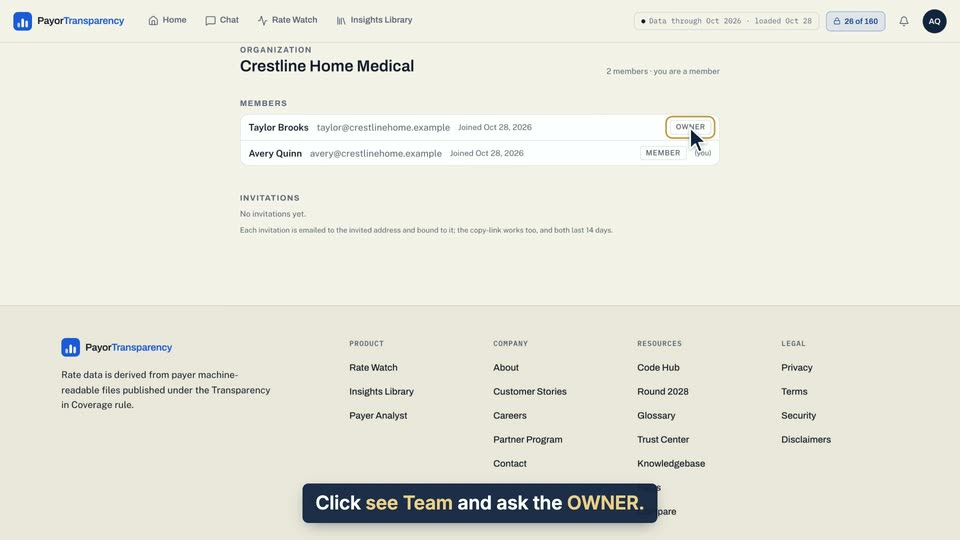
03 Click see Team and ask the OWNER.
- Use case
- How do I add a code bundle?
- Feature
- Locks and upgrade links
- Task
- Ask an owner for access