How do I buy a plan for the first time?
An owner clicks See plans or a lock to open Bundles, picks a term and clicks Continue to checkout. The first checkout adds the base platform and that bundle.
1 video · 10 sec in all · 2 written guides
Video 1 of 1 · 10 sec
Open plans and start checkout
Captions are in the video. The steps and the full narration are below.
Step by step
Before you start. Only a workspace owner can buy a plan. Until your workspace has one, Home and Chat show a box that says Chat is locked.
- In the Chat is locked box, click See plans.
- Bundles opens. At the top, choose Month to month or Annual.
- On the bundle you want, click Continue to checkout. Stripe Checkout opens, where you pay.
What you see. Above each Continue to checkout button, a line shows what the first checkout bills, the base platform plus that bundle.
Tip. The subscription is sold through Link, so receipts come from Link and your statement shows LINK.COM*.
Read the narration
On Home, click See plans. Pick Month to month or Annual, then Continue to checkout. Stripe Checkout opens.
Screens from this video
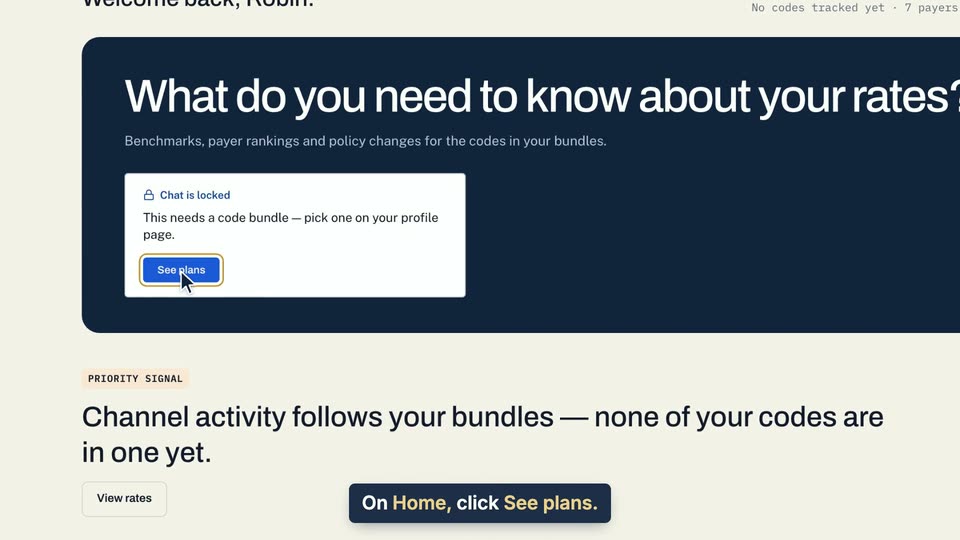
01 On Home, click See plans. 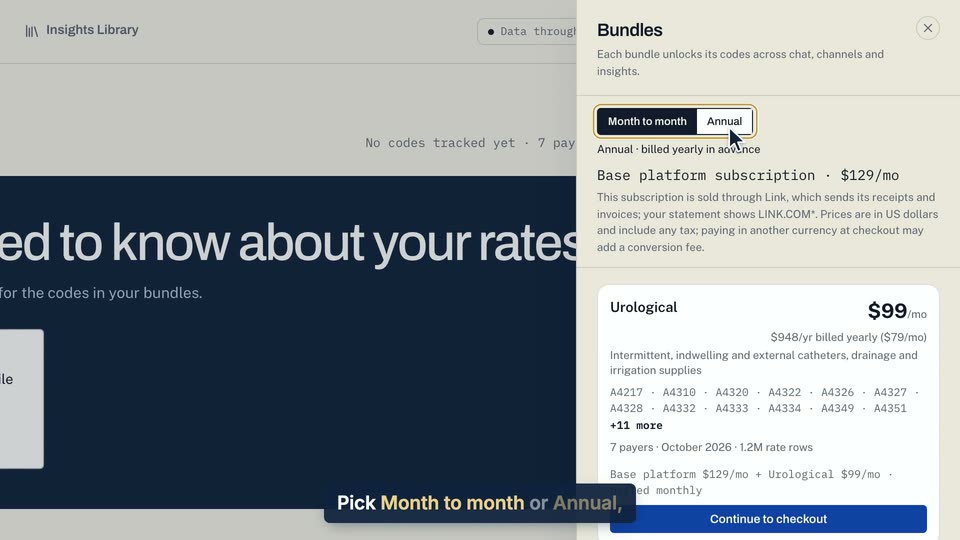
02 Pick Month to month or Annual, then Continue to checkout. 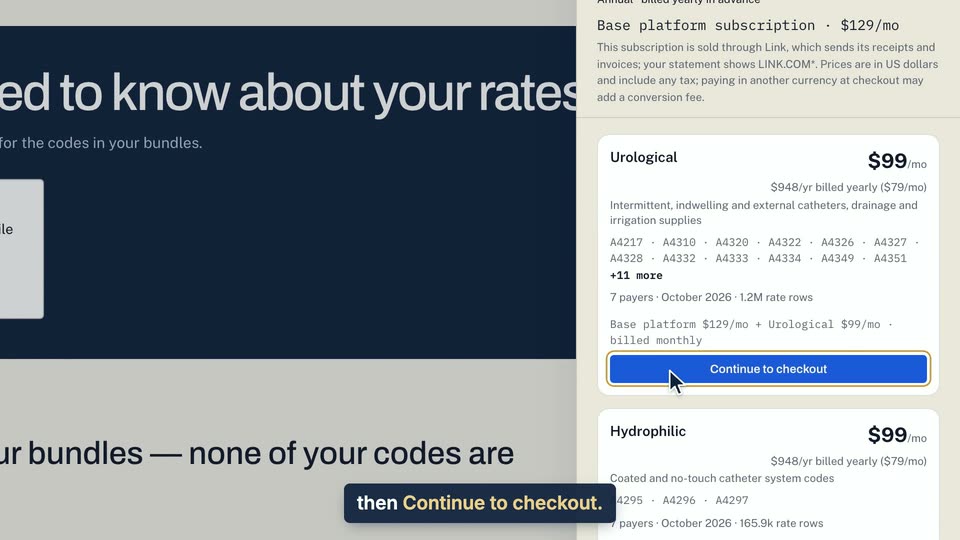
03 Pick Month to month or Annual, then Continue to checkout.
- Use case
- How do I buy a plan for the first time?
- Feature
- First checkout and return
- Task
- Open plans and start checkout
Written guide
What happens after you pay
Step by step
Before you start. This starts once a workspace owner clicks Continue to checkout in Bundles or at the end of workspace setup, and the checkout page opens.
- On the checkout page, tick the terms box and pay.
- When the payment goes through, you come back to the app on Profile & preferences.
- Click the Code bundles tab. The bundles you bought show Active.
- Under Base platform subscription, check your term and the start and renewal dates.
- If you close the tab before you get back, the bundles still turn on. Open Profile & preferences later to check.
What you see. Chat and your bundles' codes are now open to everyone in the workspace. Link sends the receipt, and your statement shows LINK.COM*.
Tip. If you leave checkout without paying, you come back to Profile & preferences with nothing charged or added, and you can start again from Bundles.
- Use case
- How do I buy a plan for the first time?
- Feature
- First checkout and return
- Task
- What happens after you pay
Written guide
What works without a plan
Step by step
Before you start. A workspace has no plan when it holds no code bundle and no base platform subscription. That is true of a new workspace, a checkout left unpaid, or a plan that has ended.
- Open Rate Watch and click Round 2028. Its Round 2028 feed, Key dates, Pending bills and Round 2028 brief stay open.
- On Home and Chat, the question box is replaced by Chat is locked.
- If you are a workspace owner, click See plans. Bundles opens so you can pick a bundle and check out.
- If you are a member, click see Team to find your workspace owner and ask them.
- Saving or sharing a brief and inviting a teammate also wait for a plan. The app points you to your profile page to pick a bundle.
What you see. Once an owner buys a bundle, Chat opens and that bundle's codes unlock for the whole workspace.
Tip. While the workspace has no plan, Profile & preferences opens on the Code bundles tab.
- Use case
- How do I buy a plan for the first time?
- Feature
- Workspace without a plan
- Task
- What works without a plan