How do I change my name or email?
Change your display name on the Account tab of Profile & preferences. Your sign-in email cannot be changed in the app.
1 video · 8 sec in all
Video 1 of 1 · 8 sec
Change your display name
Captions are in the video. The steps and the full narration are below.
Step by step
Before you start. Your display name is the name your team sees on answers you share.
- Click your initials at the top right and choose Profile & preferences.
- On the Account tab, under Account information, type a new name in Display name.
- Click Save changes. The button reads Saved ✓.
What you see. Your new name shows in your account menu at the top right and on answers you've shared with your team.
Tip. Your Email address can't be changed in the app. A workspace owner can rename the workspace on the Team page.
Read the narration
On Account, type a new Display name, then click Save changes. Your Email address can't be changed here.
Screens from this video
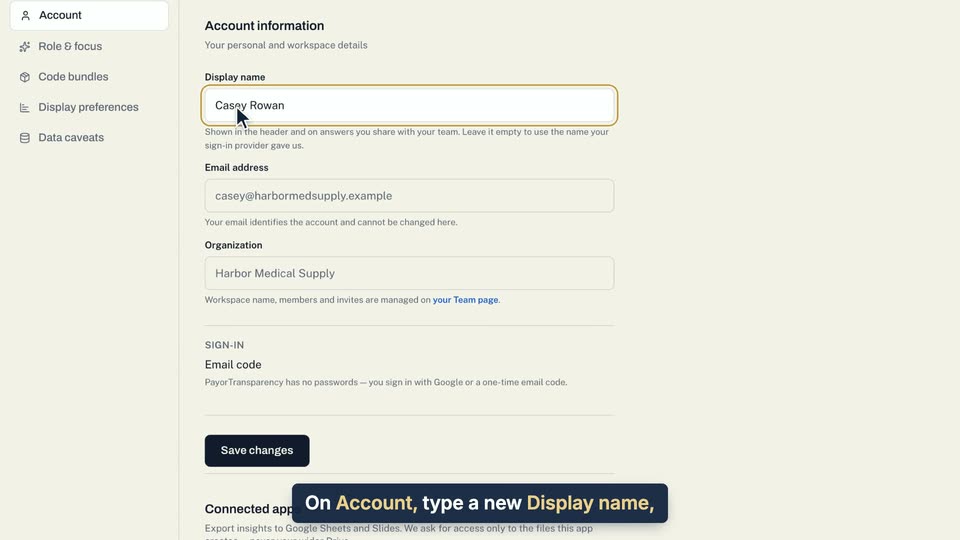
01 On Account, type a new Display name, then click Save changes. 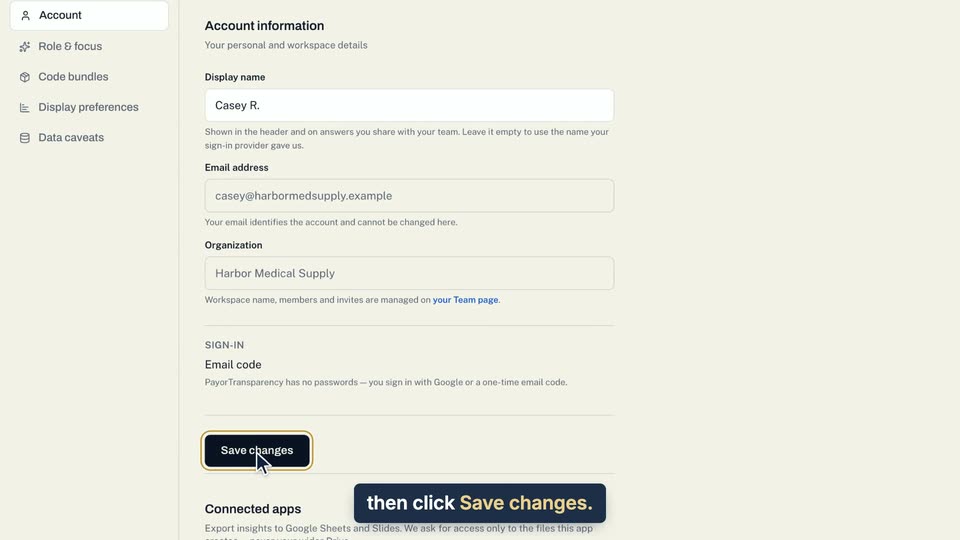
02 On Account, type a new Display name, then click Save changes. 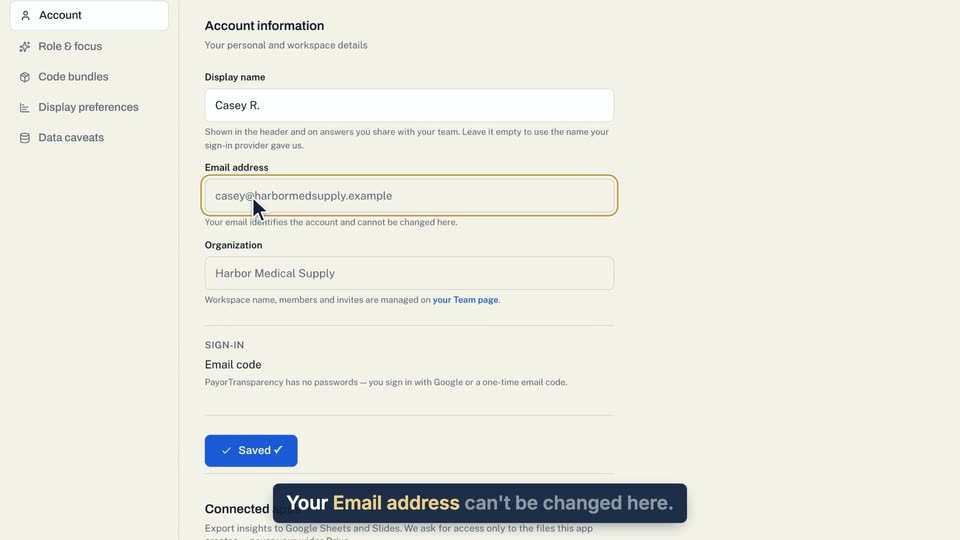
03 Your Email address can't be changed here.
- Use case
- How do I change my name or email?
- Task
- Change your display name