How do I set my roles, default state and chart?
In Profile & preferences, Role & focus sets the roles that shape suggestions, and Display preferences sets a default state, payer, time range and chart type.
2 videos · 19 sec in all
Video 1 of 2 · 9 sec
Change your roles
Captions are in the video. The steps and the full narration are below.
Step by step
Before you start. Your roles live in Profile & preferences, which opens from the account menu (your initials, top right).
- Click your initials at the top right, then click Profile & preferences.
- Click Role & focus in the list on the left.
- Click each role card that fits you, such as RCM Director. A picked card shows a check mark and two sample questions. Click a picked card again to clear it.
- Click Save changes.
What you see. The button reads Saved ✓, and every card you picked keeps its check mark.
Tip. Roles change which catalog questions you see first and how answers are framed. The first role you pick leads.
Read the narration
In Profile & preferences, open Role & focus, click RCM Director, then click Save changes.
Screens from this video
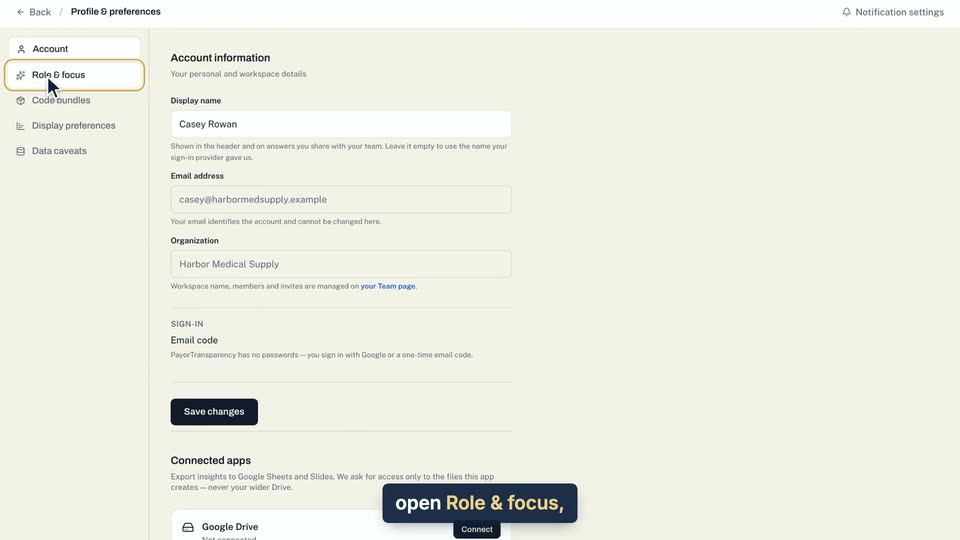
01 In Profile & preferences, open Role & focus, click RCM Director, then click Save changes. 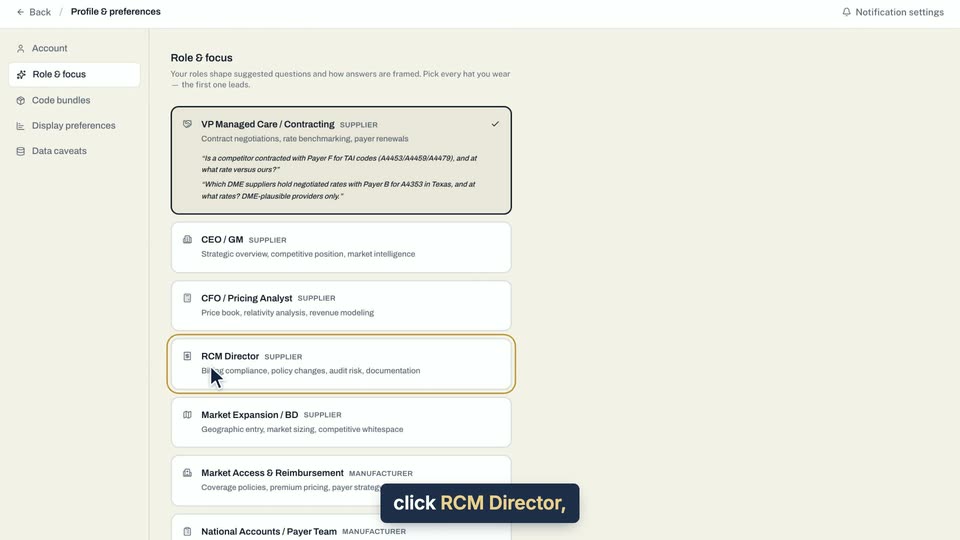
02 In Profile & preferences, open Role & focus, click RCM Director, then click Save changes. 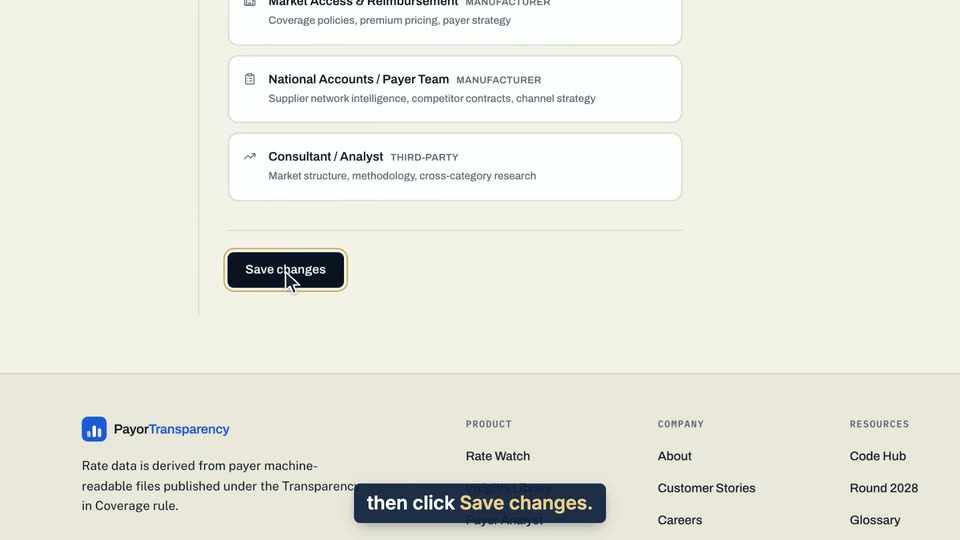
03 In Profile & preferences, open Role & focus, click RCM Director, then click Save changes.
- Use case
- How do I set my roles, default state and chart?
- Feature
- Role & focus
- Task
- Change your roles
Video 2 of 2 · 10 sec
Set your default state
Captions are in the video. The steps and the full narration are below.
Step by step
Before you start. Your default state lives in Profile & preferences, which opens from the account menu (your initials, top right).
- Click your initials at the top right, then click Profile & preferences.
- Click Display preferences in the list on the left.
- Open the Default state list and pick a state, such as CA.
- Click Save changes.
What you see. The button reads Saved ✓, and Default state shows the state you picked.
Tip. Rate Watch and Home open on this state, and Chat uses it when your question names no state.
Read the narration
In Profile & preferences, open Display preferences, pick a Default state, and click Save changes. It reads Saved.
Screens from this video
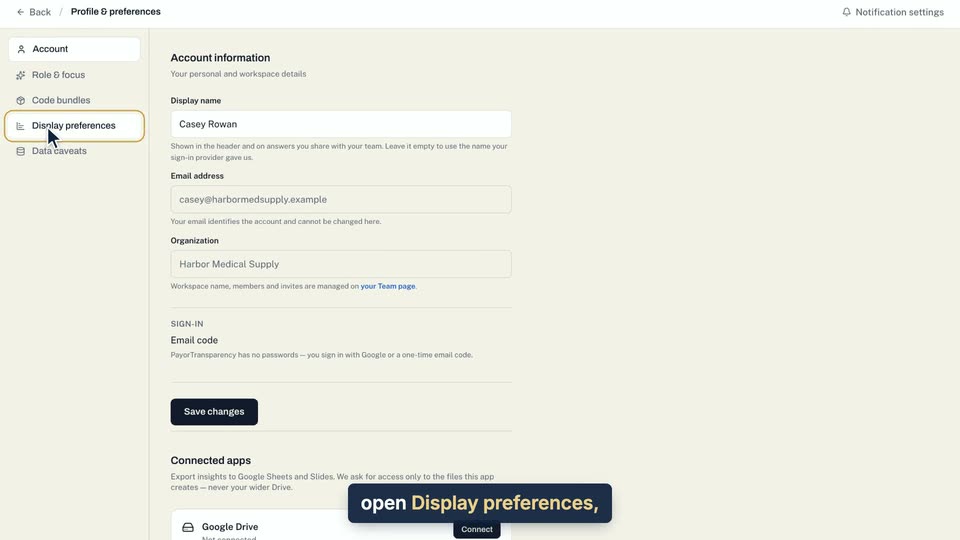
01 In Profile & preferences, open Display preferences, pick a Default state, and click Save changes. 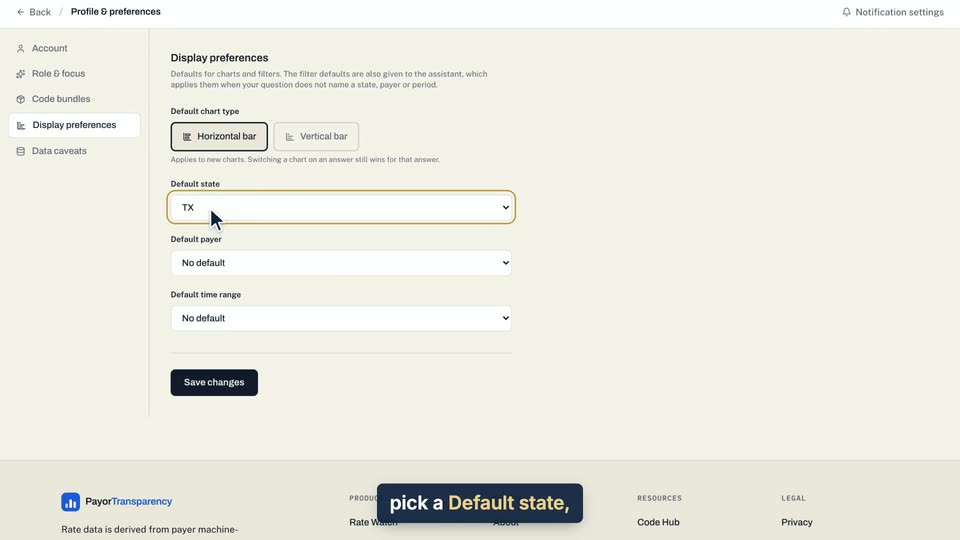
02 In Profile & preferences, open Display preferences, pick a Default state, and click Save changes. 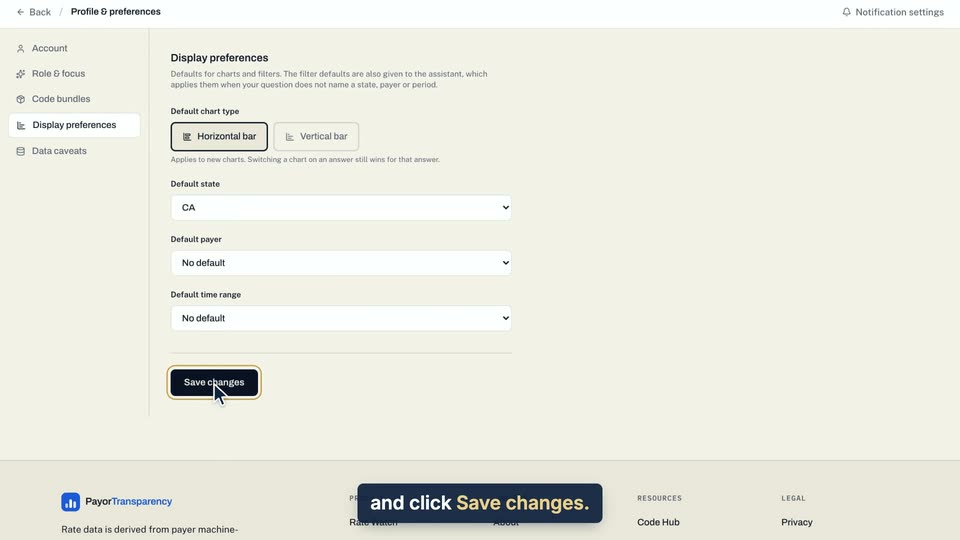
03 In Profile & preferences, open Display preferences, pick a Default state, and click Save changes. 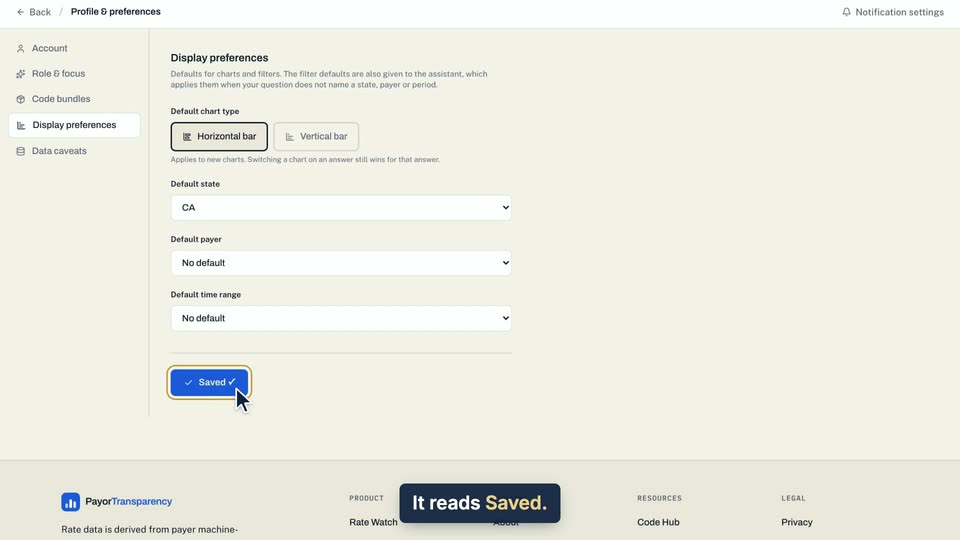
04 It reads Saved.
- Use case
- How do I set my roles, default state and chart?
- Feature
- Display preferences
- Task
- Set your default state