How do I filter or sort the Rates tab?
Use the State, Product category, Payer and vs Medicare menus above the table, and the Sort menu at the right. Each pick stays in the address, so you can bookmark the view.
4 videos · 30 sec in all
Video 1 of 4 · 7 sec
Switch the board to another state
Captions are in the video. The steps and the full narration are below.
Step by step
Before you start. The Rates tab of Rate Watch opens on your profile state.
- Click Rate Watch in the top bar. The Rates tab opens.
- Click the State menu in the filter row above the table.
- Pick a state, for example Tennessee. The board shows rates and Medicare fees for that state.
What you see. The State menu now shows Tennessee, and the line under the Rate Watch title names the state too.
Tip. Pick National at the top of the menu to see the whole country.
Read the narration
On Rate Watch, open the State menu and pick a state. The board switches to that state.
Screens from this video
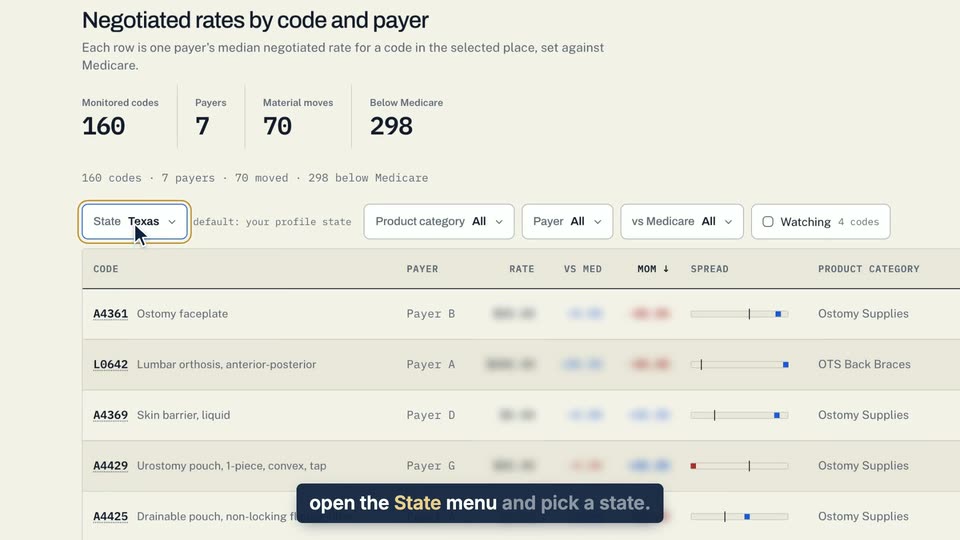
01 On Rate Watch, open the State menu and pick a state. 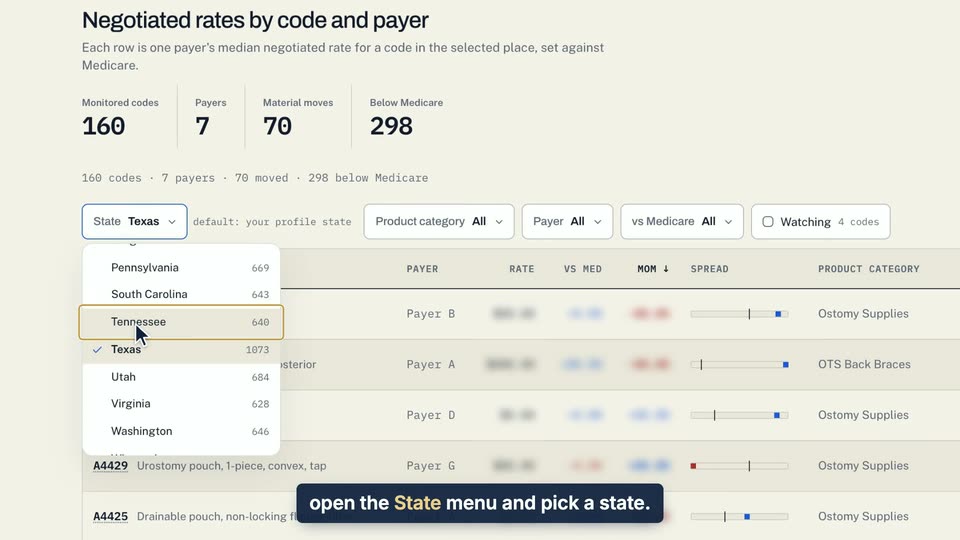
02 On Rate Watch, open the State menu and pick a state.
- Use case
- How do I filter or sort the Rates tab?
- Task
- Switch the board to another state
Video 2 of 4 · 7 sec
Show one payer's rates
Captions are in the video. The steps and the full narration are below.
Step by step
Before you start. The Rates tab of Rate Watch lists one row per code and payer for the place you pick.
- Click Rate Watch in the top bar. The Rates tab opens.
- Click the Payer menu in the filter row above the table.
- Pick a payer. The board keeps only that payer's rows for your codes.
What you see. The Payer menu now shows the payer you picked, and every row in the Payer column names that payer.
Tip. Use the Product category menu the same way to see one category.
Read the narration
On Rate Watch, open the Payer menu and pick a payer. Only that payer's rows stay.
Screens from this video
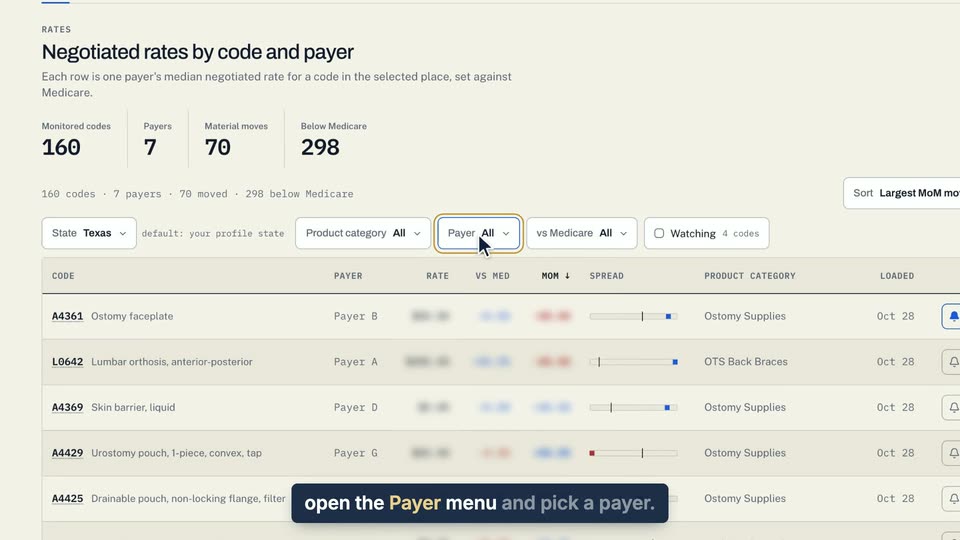
01 On Rate Watch, open the Payer menu and pick a payer. 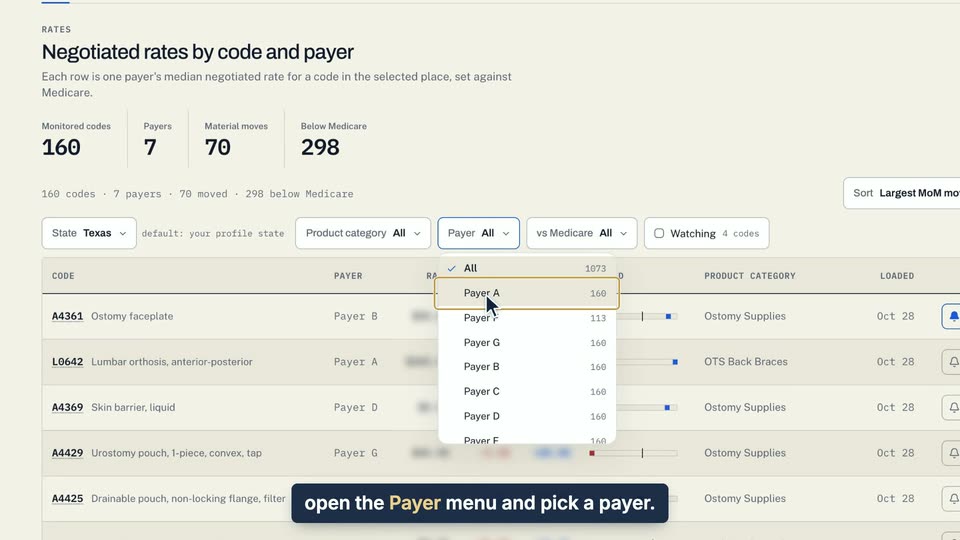
02 On Rate Watch, open the Payer menu and pick a payer.
- Use case
- How do I filter or sort the Rates tab?
- Task
- Show one payer's rates
Video 3 of 4 · 8 sec
Show only rates below Medicare
Captions are in the video. The steps and the full narration are below.
Step by step
Before you start. The Rates tab of Rate Watch lists one row per code and payer for the place you pick.
- Click Rate Watch in the top bar. The Rates tab opens.
- Click the vs Medicare menu in the filter row above the table.
- Choose Below Medicare. The board keeps only rows under the Medicare fee.
What you see. The menu now reads Below Medicare, and the vs Med value on each row shows in red.
Tip. If no rows match your other filters, click Reset filters.
Read the narration
On Rate Watch, open vs Medicare and choose Below Medicare. Only rows under the Medicare fee stay.
Screens from this video
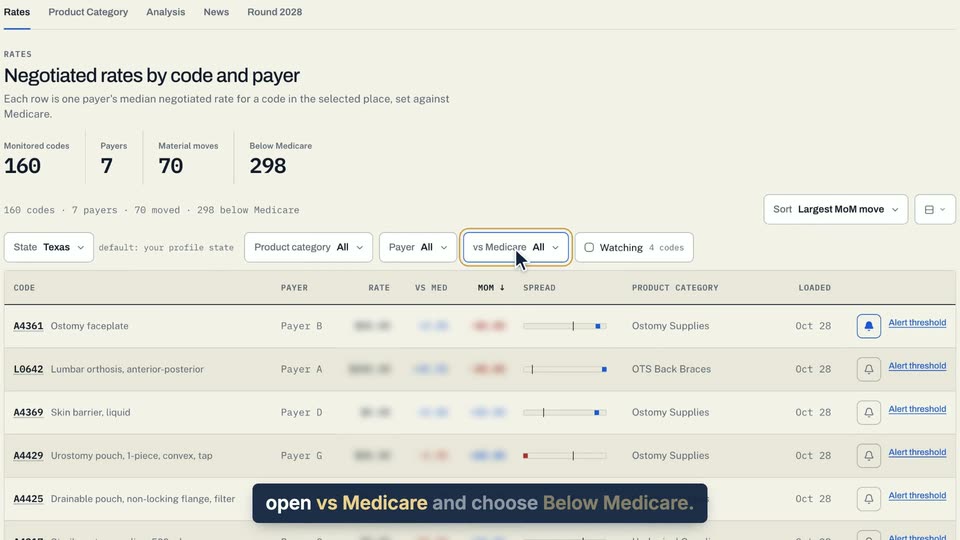
01 On Rate Watch, open vs Medicare and choose Below Medicare. 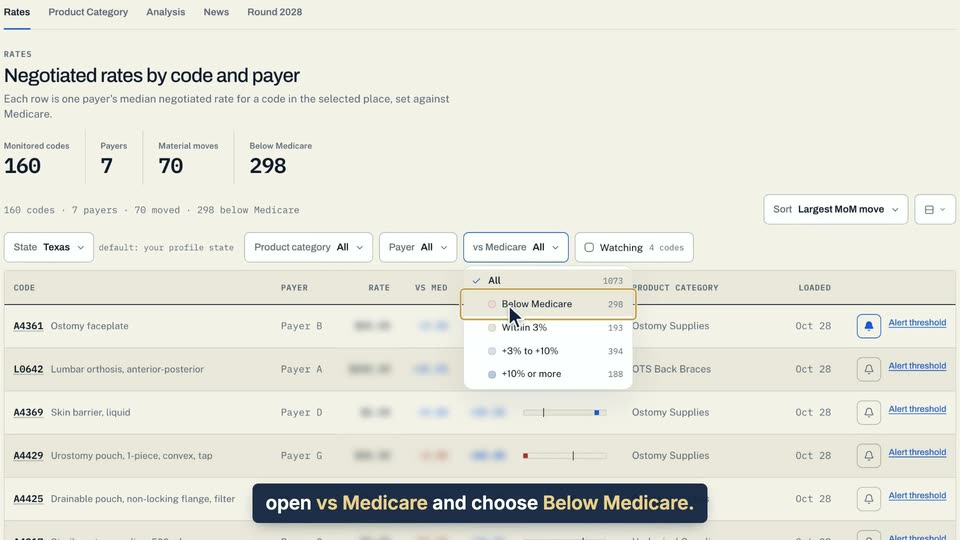
02 On Rate Watch, open vs Medicare and choose Below Medicare.
- Use case
- How do I filter or sort the Rates tab?
- Task
- Show only rates below Medicare
Video 4 of 4 · 9 sec
Sort the board
Captions are in the video. The steps and the full narration are below.
Step by step
Before you start. The Rates tab of Rate Watch opens sorted by Largest MoM move.
- Click Rate Watch in the top bar. The Rates tab opens.
- Click the Sort menu at the right, above the filters.
- Choose an order, for example vs Medicare, high to low.
What you see. The menu now reads vs Medicare, high to low, and an arrow marks the vs Med column header.
Tip. The button next to Sort switches between Default, Comfortable and Compact rows.
Read the narration
On Rate Watch, open Sort. Choose vs Medicare, high to low. The arrow marks the sorted column.
Screens from this video
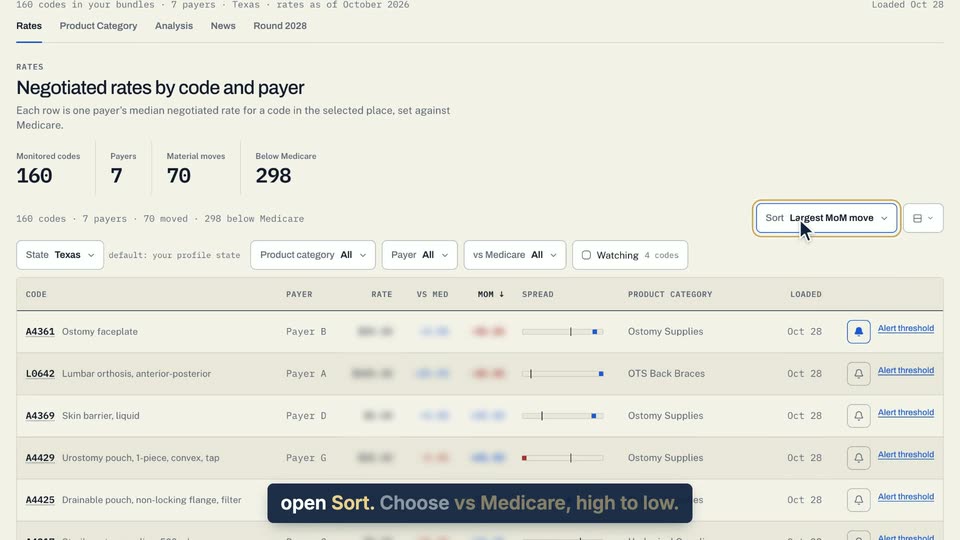
01 On Rate Watch, open Sort. 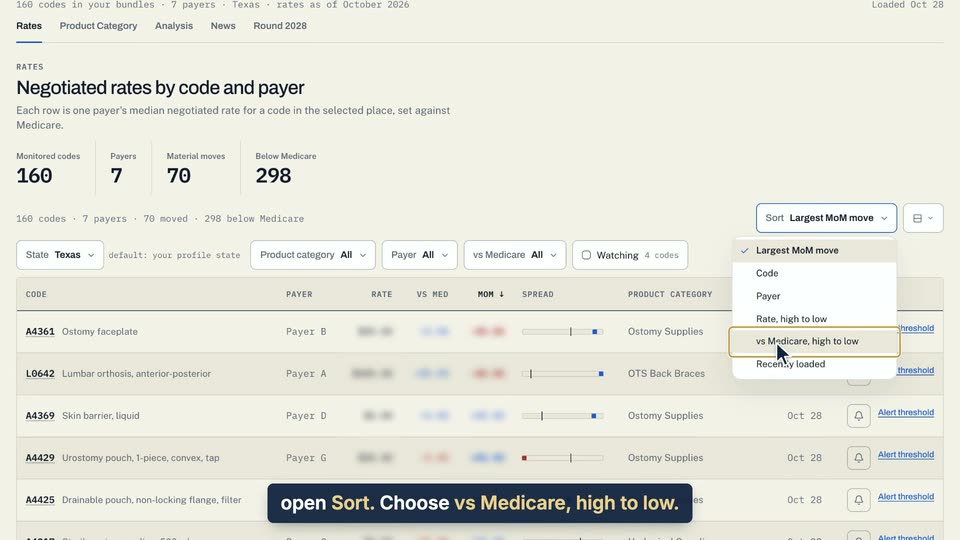
02 Choose vs Medicare, high to low. 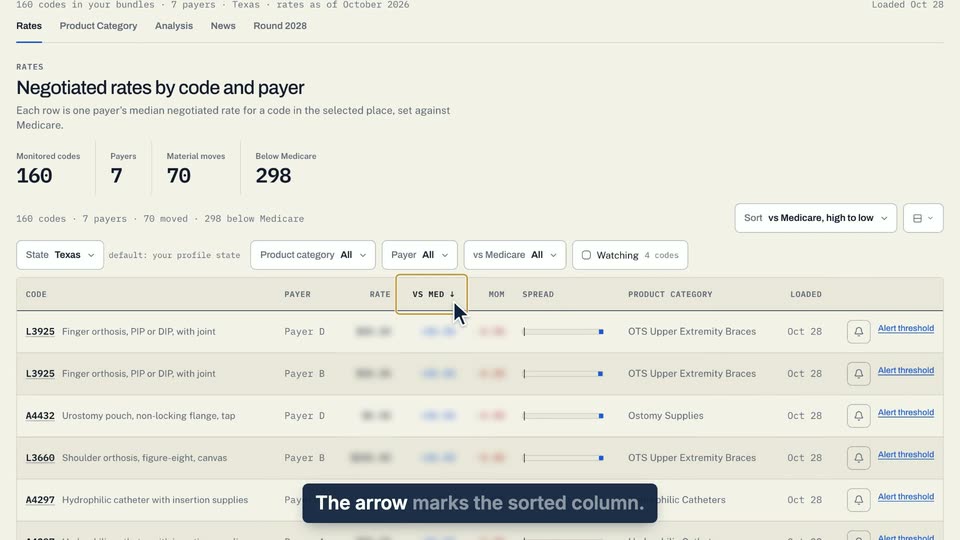
03 The arrow marks the sorted column.
- Use case
- How do I filter or sort the Rates tab?
- Feature
- Sort and row density
- Task
- Sort the board