How do I export a brief?
Click Export on a brief. PNG saves the chart, CSV and Excel download right away, PDF opens a print view, and Google Sheets or Slides need Google Drive connected once.
1 video · 8 sec in all · 1 written guide
Video 1 of 1 · 8 sec
Export a brief
Captions are in the video. The steps and the full narration are below.
Step by step
Before you start. Open the brief from the Saved tab of Insights Library, or click Saved to Insights under a saved Chat answer.
- On the brief, click Export in the toolbar at the bottom of the page.
- Choose PNG image, CSV or Excel (XLSX). The file downloads right away.
- Or choose PDF (print view). The print view opens in a new tab with your browser's print dialog. Choose Save as PDF there, or click Print / Save as PDF to open the dialog again.
What you see. The CSV or Excel file lands in your browser's downloads and holds the brief's frozen rows.
Tip. PNG image is grayed out when the brief has no chart. The Print link at the top of the brief opens the same print view.
Read the narration
On a brief, click Export. Pick a format. Excel (XLSX) downloads a spreadsheet.
Screens from this video
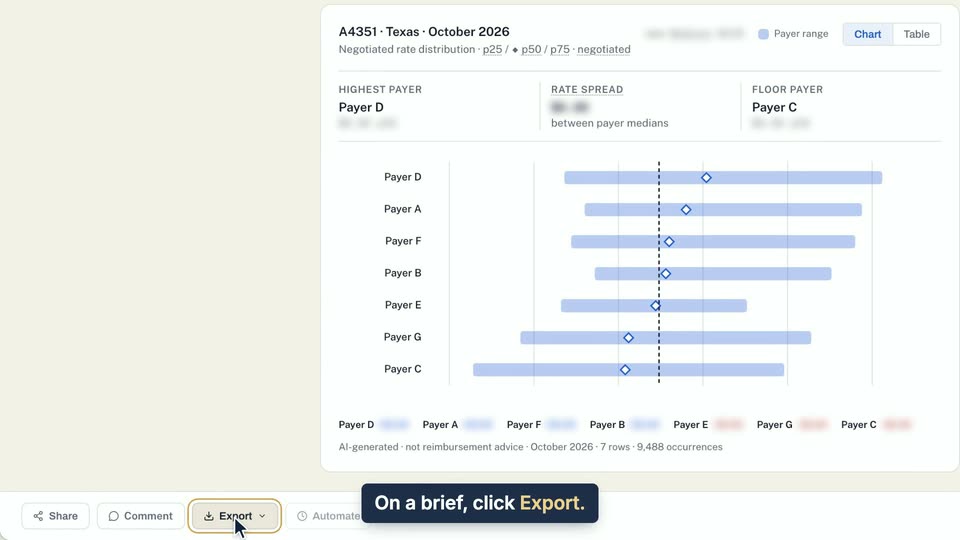
01 On a brief, click Export. 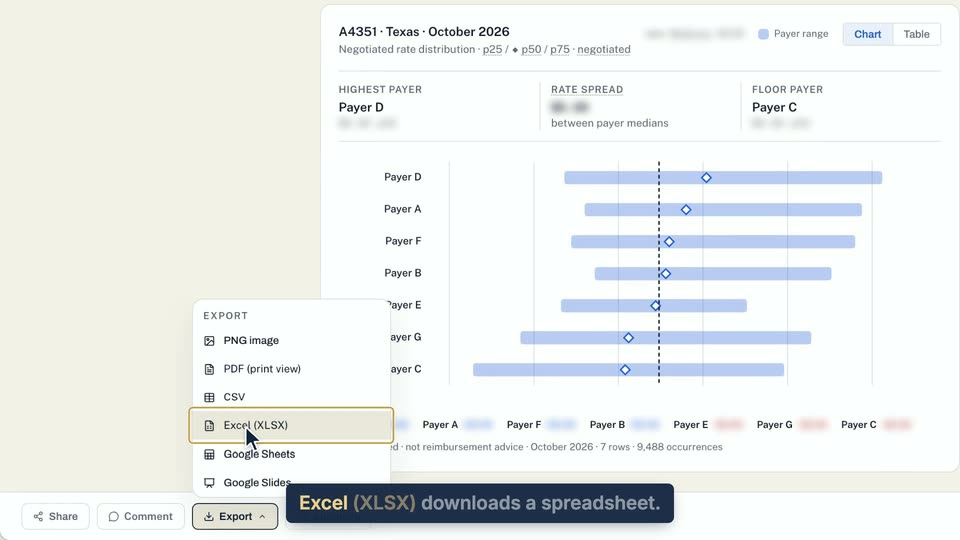
02 Excel (XLSX) downloads a spreadsheet.
- Use case
- How do I export a brief?
- Feature
- Brief export and print view
- Task
- Export a brief
Written guide
Export to Google Sheets or Slides
Step by step
Before you start. Export sits in the toolbar along the bottom of a brief, and anyone who can see the brief can use it. Google exports need Google Drive connected once.
- On a brief, click Export in the toolbar at the bottom of the page.
- Choose Google Sheets or Google Slides.
- The first time, click Connect Google Drive in the menu. Sign in with Google in the window that opens and keep the Drive files box ticked on Google's screen. If the menu shows Reconnect Google Drive, your Google connection has expired, so click it and connect again.
- The export then runs, and the new file opens in a new tab. If your browser blocks the tab, click Open in Google Sheets or Open in Google Slides in the menu.
- To stop access later, click your initials in the top bar and choose Profile & preferences. On the Account tab, under Connected apps, click Disconnect, then Disconnect again to confirm.
What you see. A Sheets file holds the brief's frozen rows. A Slides file has a title slide and a table slide with up to 15 rows. When the brief has a chart, a last slide notes that the chart is in the PNG or PDF export.
Tip. If the menu says One more permission to export to Google Sheets or Slides, the Drive files box was left unticked. Click Reconnect and allow Drive access and tick it, or use PDF (print view), CSV or Excel (XLSX), which need no Drive.
- Use case
- How do I export a brief?
- Feature
- Brief export and print view
- Task
- Export to Google Sheets or Slides