How do I remove someone from the workspace?
On the Team page an owner clicks Remove on a member's row and confirms. Their saved work stays with the workspace.
1 video · 9 sec in all
Video 1 of 1 · 9 sec
Remove a member
Captions are in the video. The steps and the full narration are below.
Step by step
Before you start. Only a workspace owner sees Remove, and an owner can't be removed.
- Click your initials at the top right and choose Team.
- Under Members, click Remove on the person's row.
- Read the note that opens, then click Remove again to confirm. Cancel keeps them.
What you see. Their row leaves the list, and a line under it confirms the removal.
Tip. Their saved work stays with the workspace, their monitors stop, and they can return only with a new invitation.
Read the narration
On the Team page, click Remove beside a member, then Remove to confirm. They lose access right away.
Screens from this video
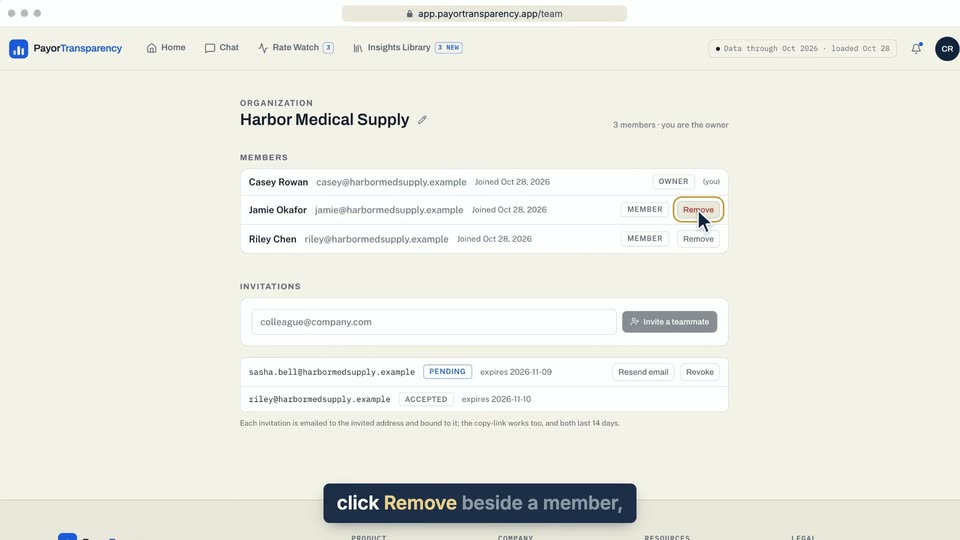
01 On the Team page, click Remove beside a member, then Remove to confirm. 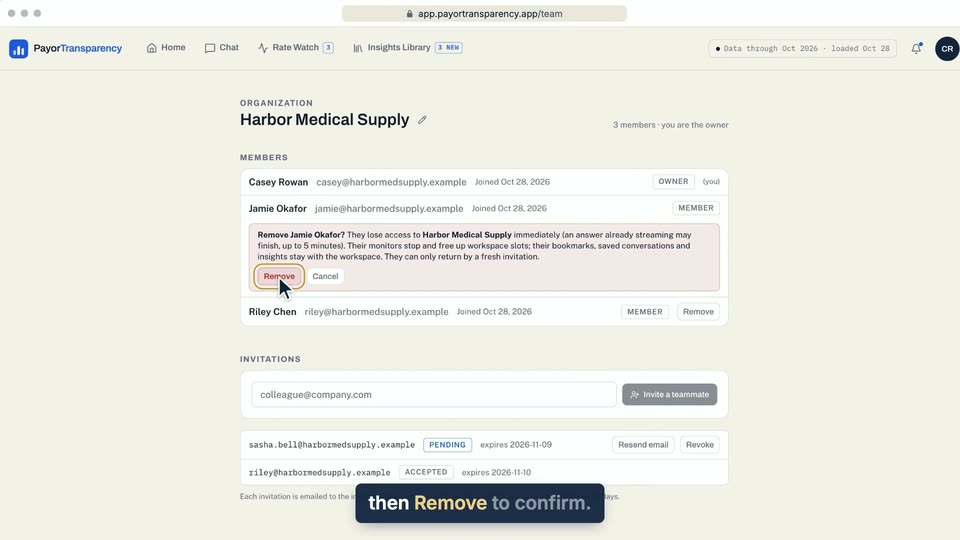
02 On the Team page, click Remove beside a member, then Remove to confirm. 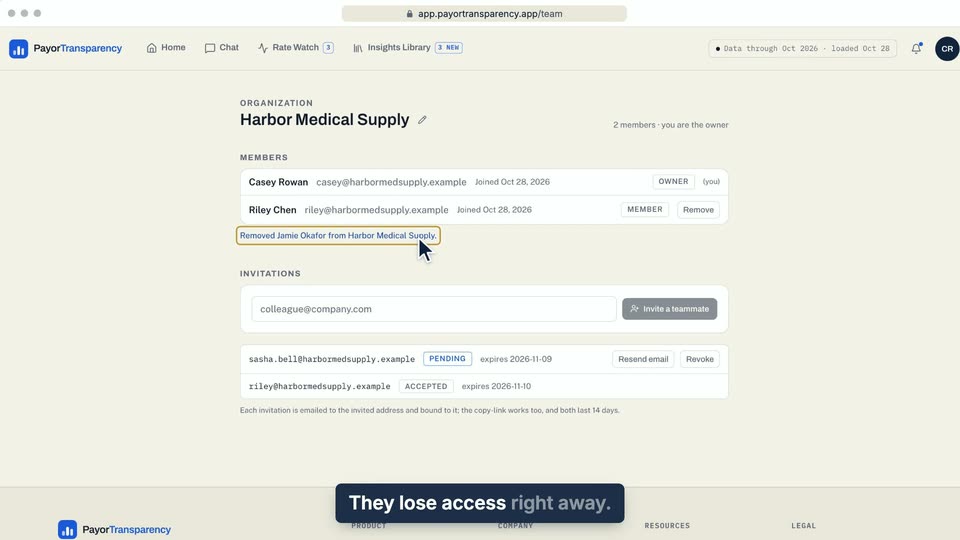
03 They lose access right away.
- Use case
- How do I remove someone from the workspace?
- Feature
- Remove a member
- Task
- Remove a member