How do I choose when a rate alert fires?
A watched code alerts you when a payer median moves past your rule. Set one per payer with Alert threshold, or set a stricter rule in Notification settings.
2 videos · 17 sec in all
Video 1 of 2 · 9 sec
Set an alert threshold
Captions are in the video. The steps and the full narration are below.
Step by step
Before you start. You can set a threshold only on a code you watch. On the code's page, a filled bell next to the code means you watch it.
- In Rate Watch, click the code on the Rates tab to open its page. If the bell next to the code isn't filled, click it to watch the code.
- In the payer table, click Alert threshold on the payer's row.
- In the line that starts Alert me when this payer's rate moves at least, type a new percent in the first box.
- To change the dollar floor too, type a new amount in the second box.
- Click Save.
What you see. A line under the buttons confirms the percent and dollar amount you saved.
Tip. A threshold covers one code and one payer in every state, and Use default in the same panel puts that row back on the default rule.
Read the narration
On a code page, open a payer's Alert threshold, type a percent, and Save. The panel confirms it.
Screens from this video
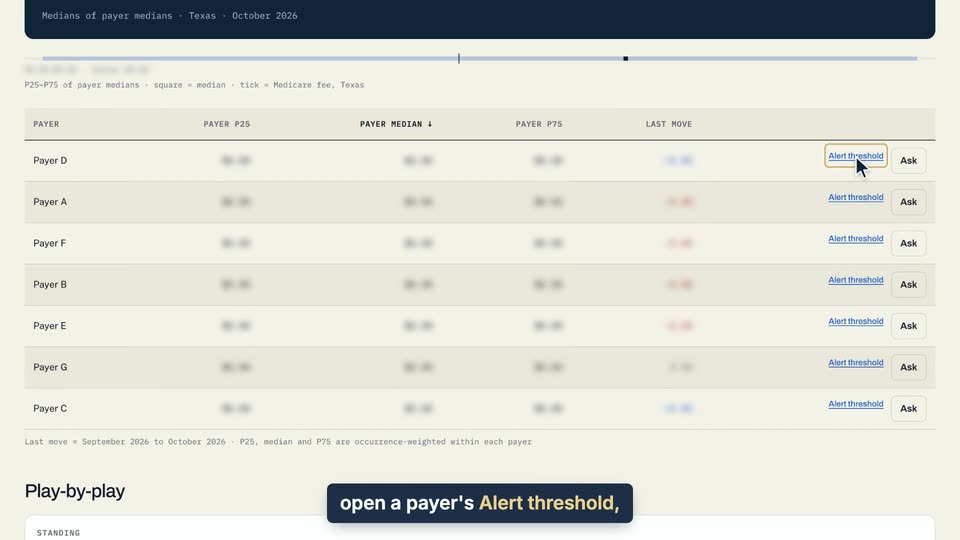
01 On a code page, open a payer's Alert threshold, type a percent, and Save. 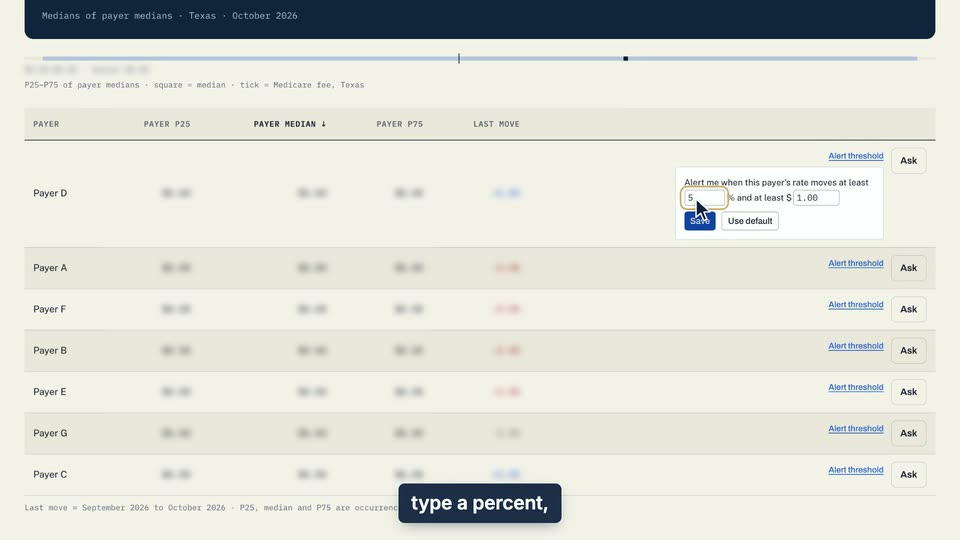
02 On a code page, open a payer's Alert threshold, type a percent, and Save. 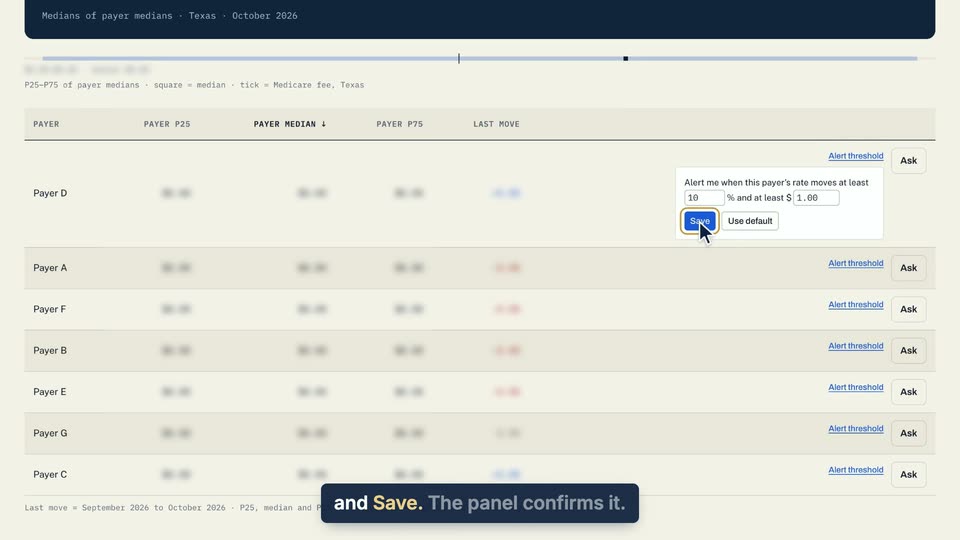
03 On a code page, open a payer's Alert threshold, type a percent, and Save. 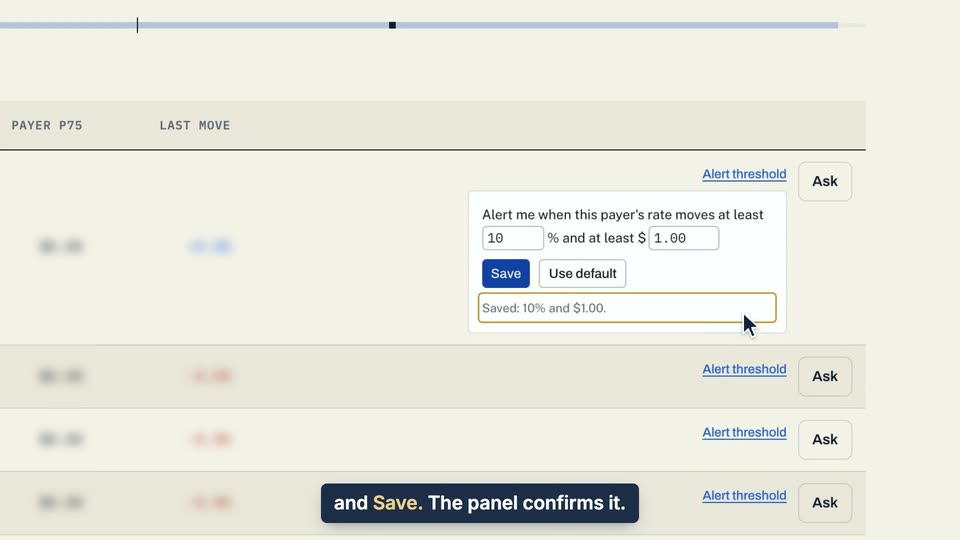
04 The panel confirms it.
- Use case
- How do I choose when a rate alert fires?
- Feature
- Per-row alert threshold
- Task
- Set an alert threshold
Video 2 of 2 · 9 sec
Set an account-wide alert threshold
Captions are in the video. The steps and the full narration are below.
Step by step
Before you start. The account-wide rule lives in Notification settings, which opens from the account menu (your initials, top right).
- Click your initials at the top right, then click Notification settings.
- Scroll to Rate movement and type a number in Percent change (%), Dollar change ($), or both. Leave a box empty for no threshold of that kind.
- Click Save changes at the bottom of the Rate movement section.
What you see. The button reads Saved ✓ and the box keeps the number you typed.
Tip. Without a row threshold, only moves of at least 5% and $1 are recorded as alerts, so this rule can only make alerts stricter. A row with its own threshold keeps it, and those rows are listed under Row thresholds at the top of the page.
Read the narration
In Notification settings, under Rate movement, type a Percent change, then click Save changes.
Screens from this video
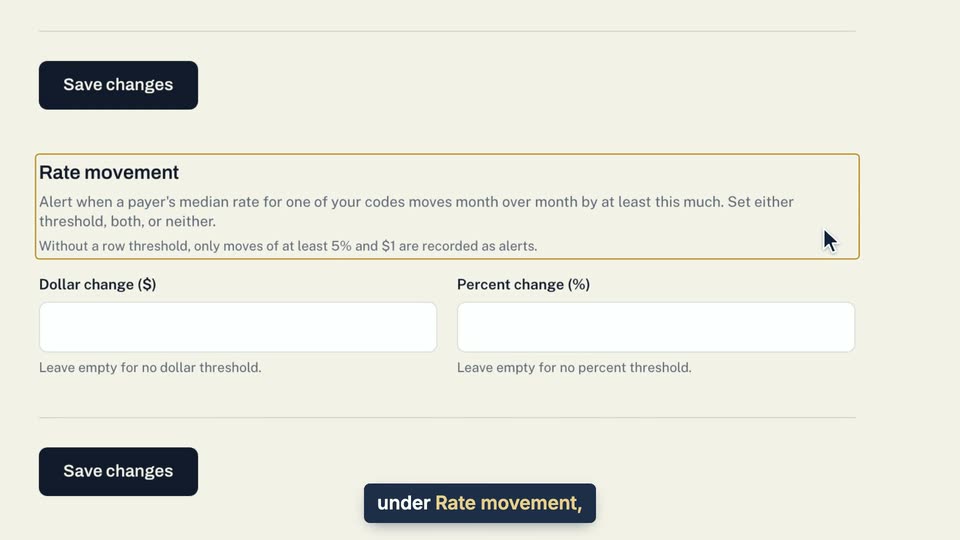
01 In Notification settings, under Rate movement, type a Percent change, then click Save changes. 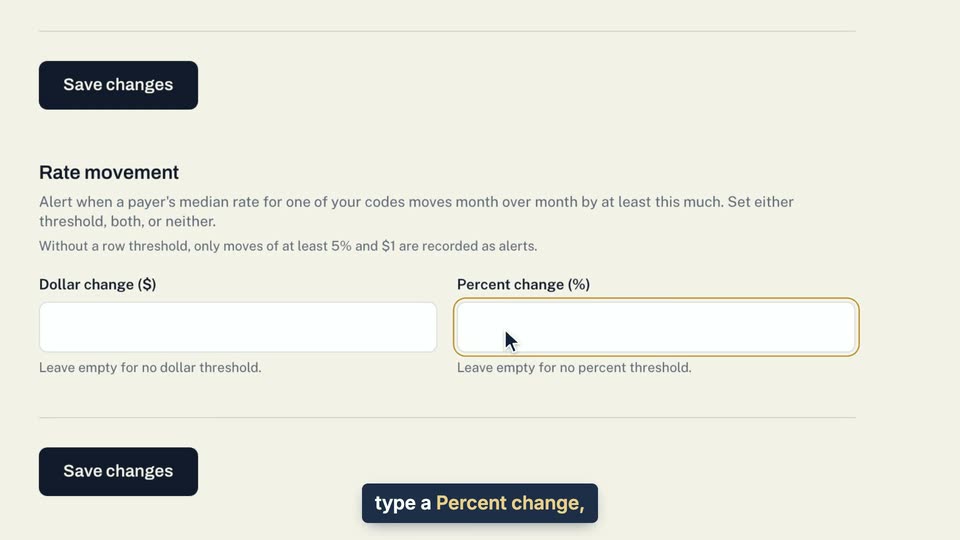
02 In Notification settings, under Rate movement, type a Percent change, then click Save changes. 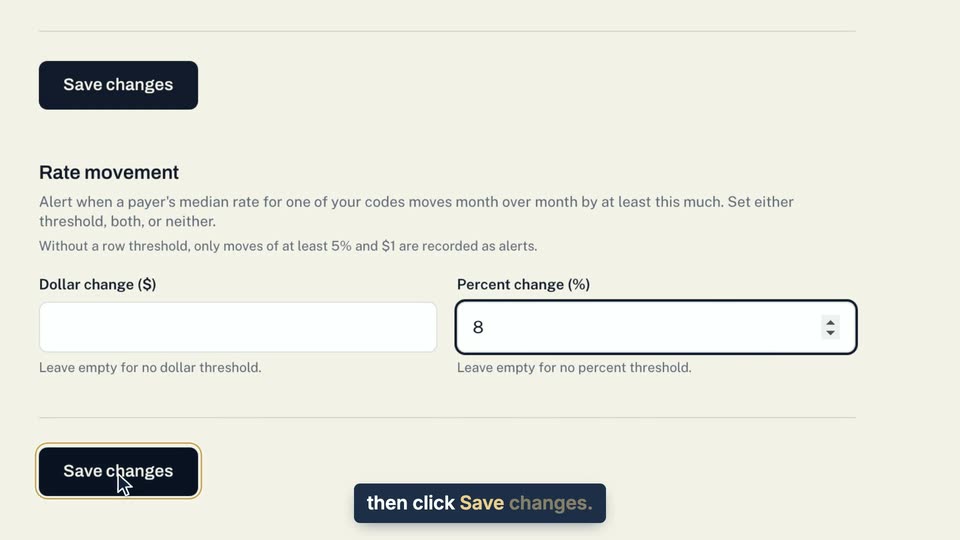
03 In Notification settings, under Rate movement, type a Percent change, then click Save changes. 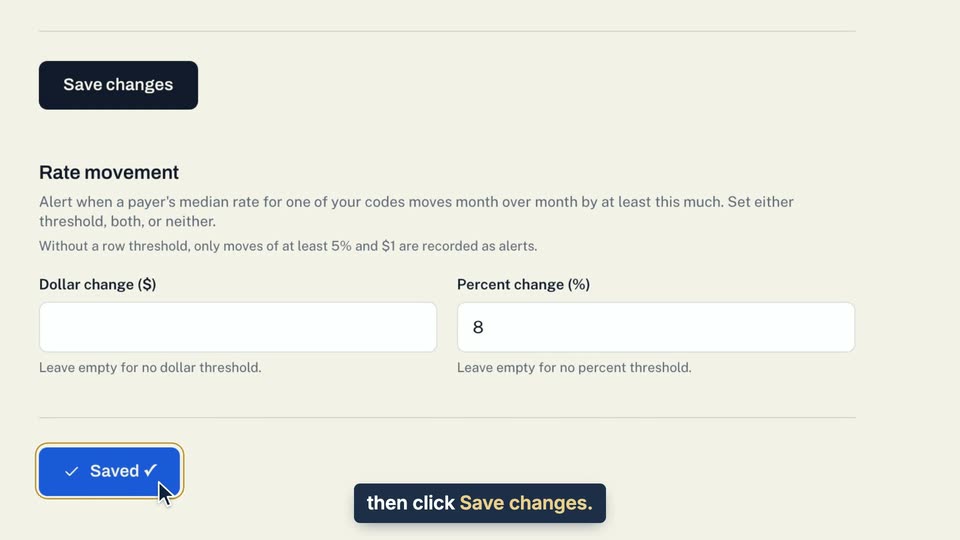
04 In Notification settings, under Rate movement, type a Percent change, then click Save changes.
- Use case
- How do I choose when a rate alert fires?
- Task
- Set an account-wide alert threshold