How do I copy or download an answer's numbers?
Switch the chart card to Table, then click Copy table to paste the rows into a spreadsheet, or CSV to download them.
1 video · 8 sec in all
Video 1 of 1 · 8 sec
Copy the answer as a table
Captions are in the video. The steps and the full narration are below.
Step by step
Before you start. Open an answer in Chat that shows a chart card.
- On the chart card, click Table.
- Click Copy table. The button reads Copied.
- Paste into your spreadsheet. Each payer lands on its own row.
What you see. Your spreadsheet holds the same rows and columns as the table on screen.
Tip. CSV downloads the same table as a file. Click Chart to go back to the bars.
Read the narration
On the chart card, click Table, then Copy table. When it reads Copied, paste into a spreadsheet.
Screens from this video
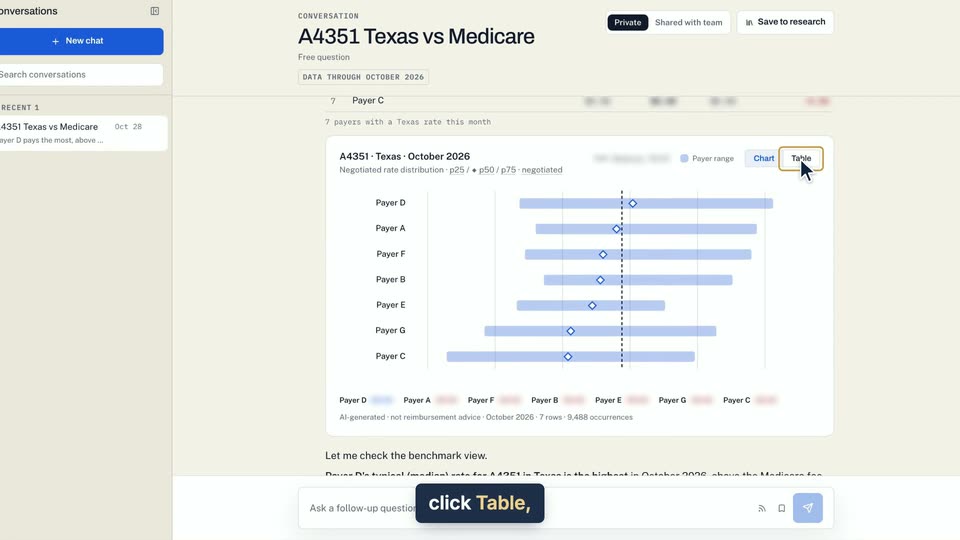
01 On the chart card, click Table, then Copy table. 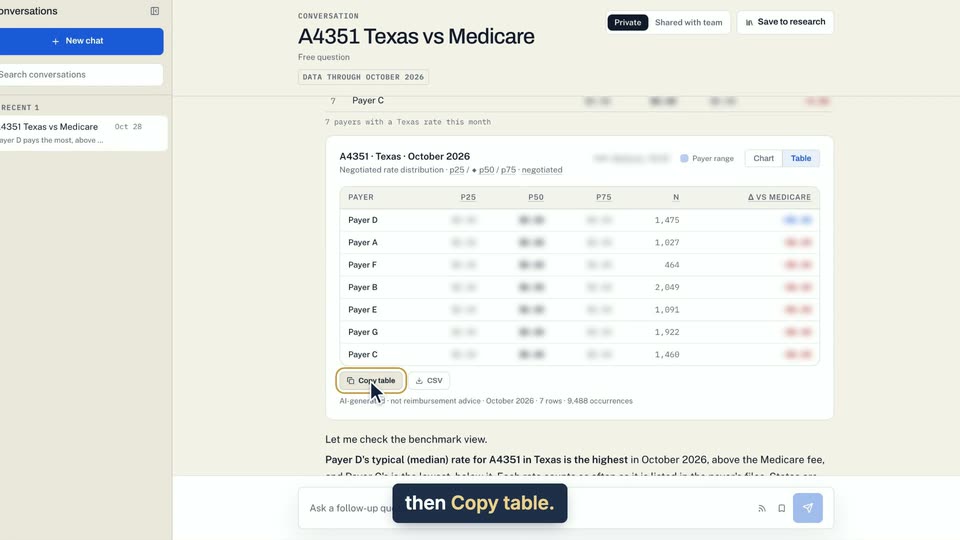
02 On the chart card, click Table, then Copy table. 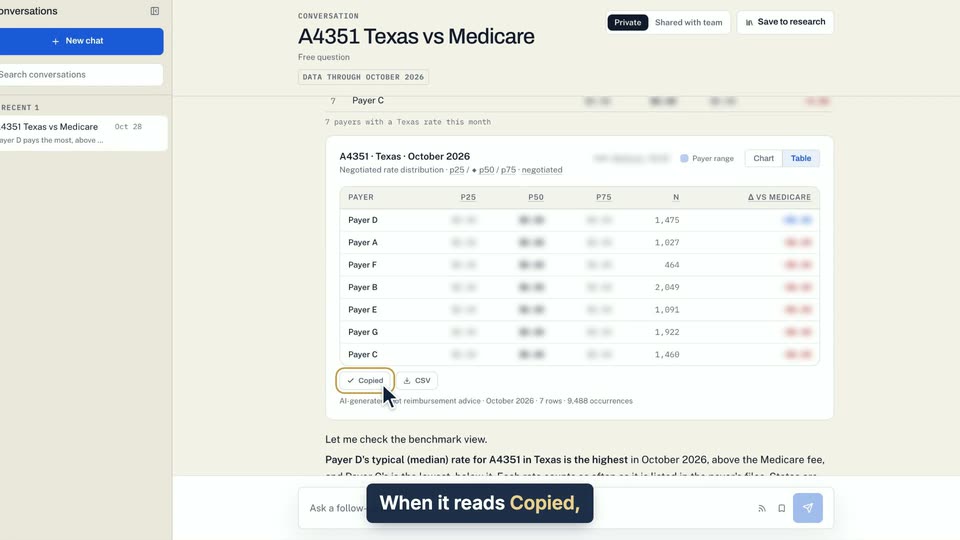
03 When it reads Copied, paste into a spreadsheet.
- Use case
- How do I copy or download an answer's numbers?
- Feature
- Payer range chart and table
- Task
- Copy the answer as a table