How do I sign in, sign up or sign out?
There is no password. Use Continue with Google or your email and a 6-digit code, and your first sign-in creates your account. Sign out from the account menu.
1 video · 7 sec in all · 1 written guide
Written guide
Sign in with Google or an email code
Step by step
Before you start. There is no password. You sign in with Google or with a code sent to your email, and the same steps create a new account.
- Go to app.payortransparency.app, or click Log in or Get started at the top of payortransparency.com (on a phone, open the site menu first). Both open the sign-in card, headed Sign in to your account.
- Click Continue with Google and choose your Google account.
- Or type your work email in Email address and click Continue with email.
- Type the 6-digit code from the email and click Sign in. If you clicked Create one first, the button reads Create account and works the same way.
What you see. You land on Home, or on the page you were trying to open. Your first sign-in opens a short setup instead.
Tip. Typed the wrong address? Click Use a different email on the code step.
- Use case
- How do I sign in, sign up or sign out?
- Feature
- Sign-in card
- Task
- Sign in with Google or an email code
Video 1 of 1 · 7 sec
Sign out
Captions are in the video. The steps and the full narration are below.
Step by step
Before you start. You sign out from the account menu at the top right of the app.
- Click your initials at the top right of the page. The account menu opens.
- Click Sign out at the bottom of the menu.
What you see. You land on the sign-in page. To come back, sign in with Google or an email code.
Tip. On a shared computer, sign out when you finish.
Read the narration
Click your initials at the top right, then click Sign out. You return to the sign-in page.
Screens from this video
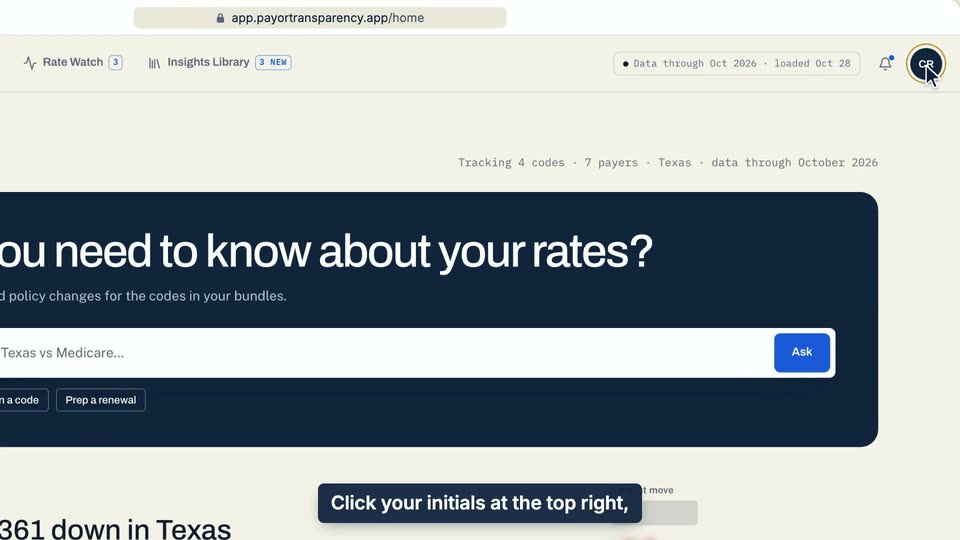
01 Click your initials at the top right, then click Sign out. 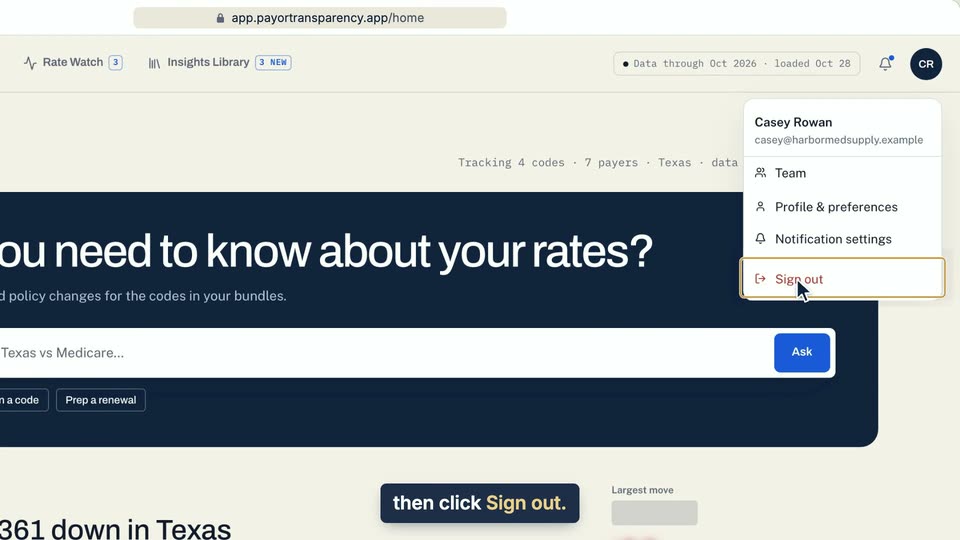
02 Click your initials at the top right, then click Sign out. 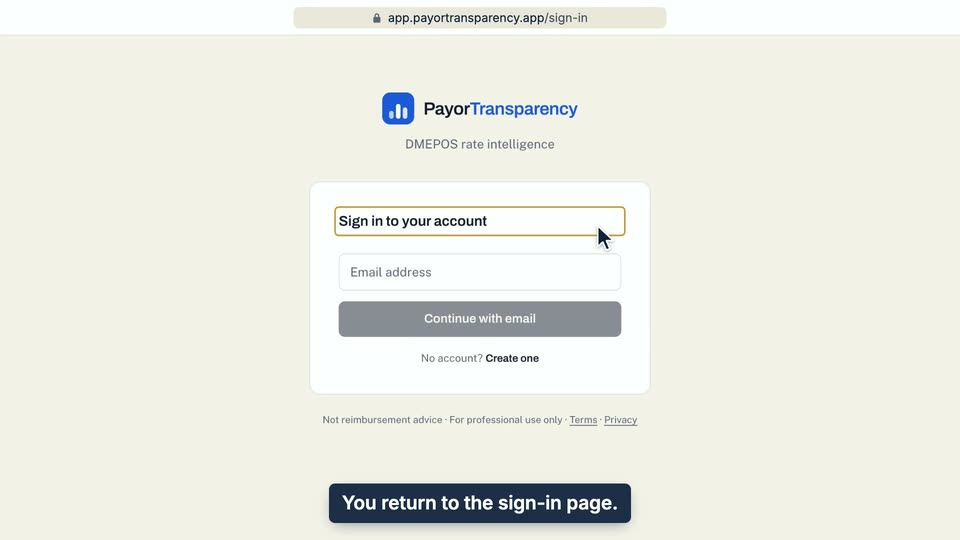
03 You return to the sign-in page.
- Use case
- How do I sign in, sign up or sign out?
- Feature
- Sign out
- Task
- Sign out