I was invited to a team. How do I join?
Open the invitation link and sign in with the exact address it was sent to. Pick your roles, check what your workspace already has, then click Start exploring.
1 video · 10 sec in all · 1 written guide
Written guide
Accept an invitation
Step by step
Before you start. An invitation works for 14 days and only for the email address it was sent to. If yours has expired, ask your teammate for a new one.
- Open the email You're invited to a PayorTransparency workspace and click Accept the invitation, or open the link your teammate sent you.
- The sign-in card says You've been invited to join and names your teammate's workspace. It shows the invited address, partly hidden.
- Sign in with that exact address, by Continue with Google or by Continue with email and the 6-digit code.
- Under What best describes your role?, pick one or more roles. Then click the button under them, which counts your picks (Continue with 1 role → for one).
- The next card says Joining and your teammate's workspace name. Click Start exploring →.
What you see. Chat opens and asks a first question for you. You are now a member of your teammate's workspace.
Tip. Open the invitation before you sign in any other way. An account belongs to one workspace, so if yours already has one, the invitation is not applied.
- Use case
- I was invited to a team. How do I join?
- Feature
- Accepting an invitation
- Task
- Accept an invitation
Video 1 of 1 · 10 sec
Finish member setup
Captions are in the video. The steps and the full narration are below.
Step by step
Before you start. When you join a team through an invitation, your first sign-in opens a two-step member setup at Select your roles.
- Under What best describes your role?, click every role card that fits you, such as RCM Director.
- Click Continue with 1 role →. The count follows your picks.
- On Confirm & start, check the CODES card. It shows what your workspace already has, such as All access.
- Click Start exploring →.
What you see. Your roles are saved and Chat opens with a first benchmark question on one of your workspace's codes.
Tip. If the CODES card says your workspace has no code bundles yet, ask a workspace owner to add them.
Read the narration
Pick your role, like RCM Director. Click Continue with 1 role. Check your codes, then click Start exploring.
Screens from this video
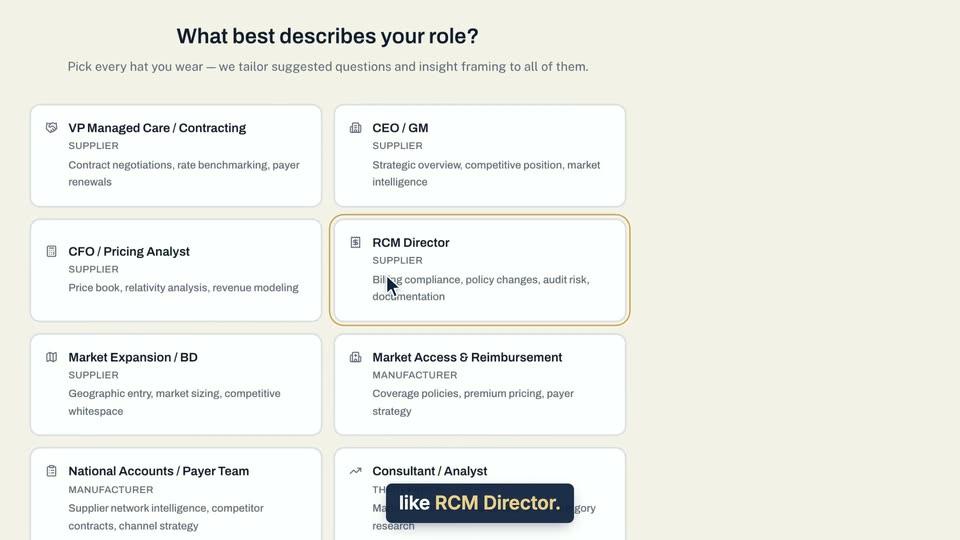
01 Pick your role, like RCM Director. 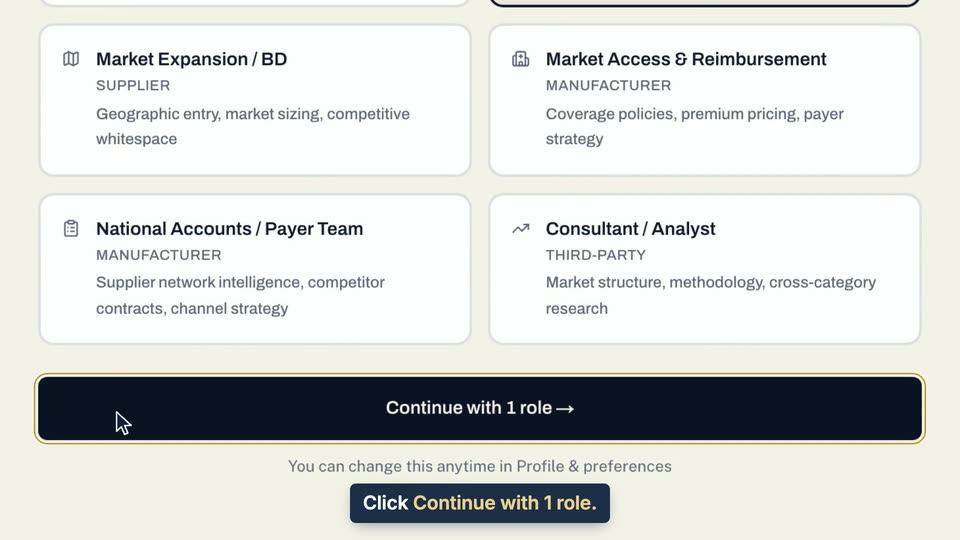
02 Click Continue with 1 role. 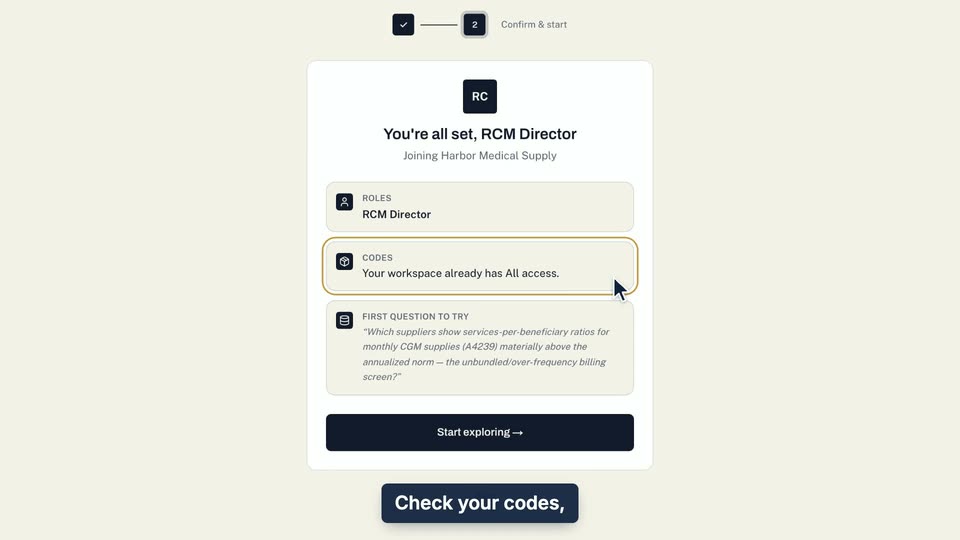
03 Check your codes, then click Start exploring. 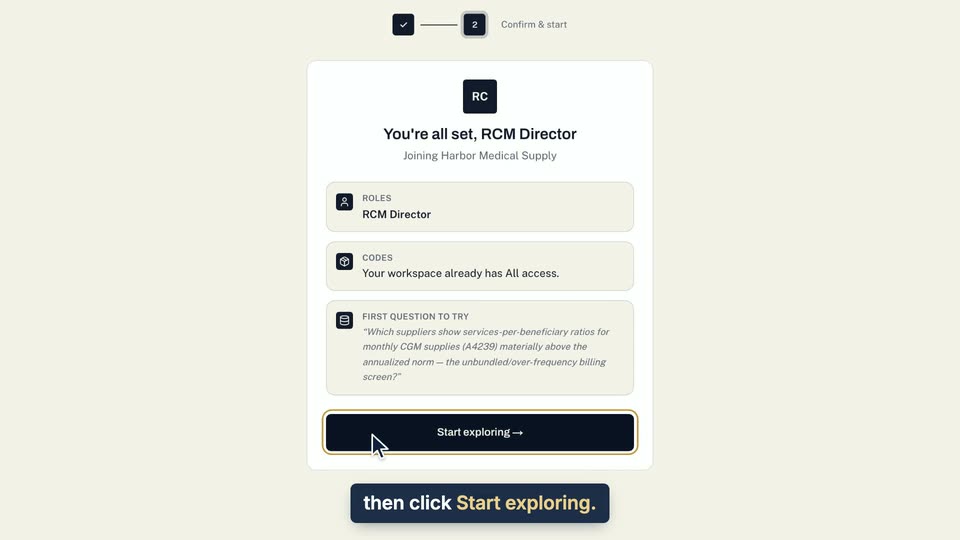
04 Check your codes, then click Start exploring.
- Use case
- I was invited to a team. How do I join?
- Task
- Finish member setup